Why track expenses
Tracking expenses gives you a complete picture of your business finances. When you know where your money goes, you can find savings, budget better, and prepare for tax season with less stress.
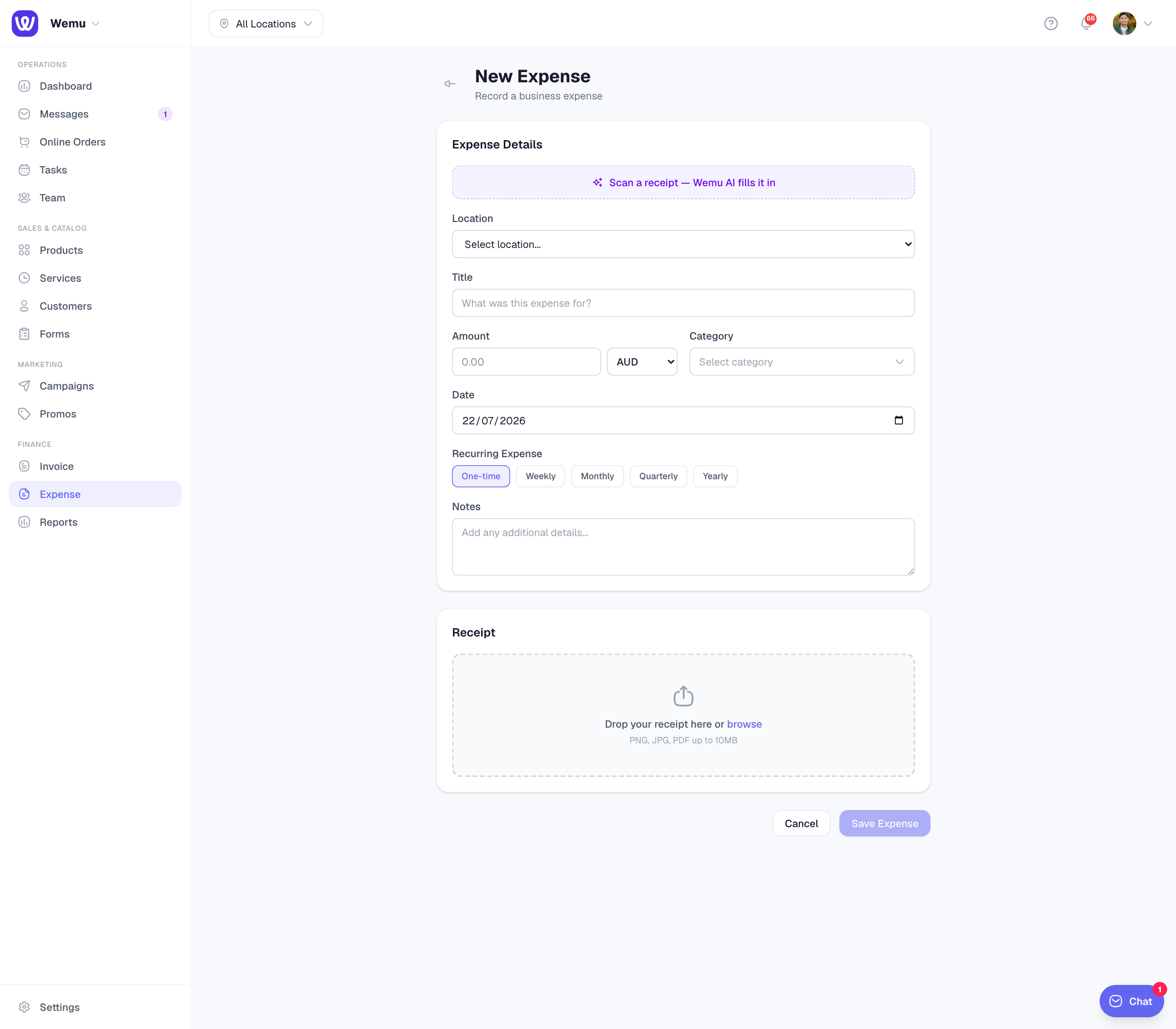
Navigate to: Sidebar → Expense → + Add Expense
Adding an expense
- Go to Expenses in the main navigation
- Tap + Add Expense
- Enter the amount
- Select a category (e.g., Rent, Supplies, Marketing)
- Add a description (e.g., "Monthly rent for main location")
- Set the date of the expense
- Optionally upload a receipt photo
- If you have multiple locations, select the branch
- Tap Save
Receipt uploads
Wemu lets you attach a photo of the receipt to each expense. This is invaluable for record-keeping and tax purposes.
- Tap the camera icon when creating an expense
- Take a photo of the receipt or upload from your gallery
- The receipt image is stored with the expense record
Recurring expenses
For expenses that repeat every month (like rent or software subscriptions):
- Create the expense as usual
- Toggle on Recurring
- Set the frequency (monthly, weekly, etc.)
- Wemu will automatically create the expense entry each period
Editing expenses
To update an expense:
- Find it in the expense list
- Tap to open
- Make your changes
- Save
Deleting expenses
If you entered an expense by mistake, you can delete it. Open the expense and tap Delete. Be careful — deleted expenses are removed from your reports.
Tip: Log expenses as they happen rather than saving them for later. It takes 30 seconds to enter an expense right after you pay for something, but trying to reconstruct a month's worth of expenses from memory is frustrating and inaccurate.
Viewing your expense list
The expense list shows all entries sorted by date. You can filter by:
- Category
- Date range
- Branch (location)
- Amount range