Expanding to more locations
You run every location from one Wemu account. Each location, called a branch in Wemu, has its own address, contact details and opening hours, and you can look at orders, stock, expenses and reports for one branch at a time.
📍
Navigate to: Settings → Branches → Add Branch
Wemu Core covers one location, so a second location needs Wemu Growth, at $49 a month per location. See Adding team seats & locations.
How to add a location
- Go to Settings → Branches and press Add Branch. On Core, you'll see a message about moving to Growth instead.
- Enter the Branch Name, such as Downtown or Mall Store
- Add the Street Address
- Add a Phone and Email if this branch has its own (optional)
- Under Operating Hours, set the opening and closing time for each day, or tick Closed. A new branch starts with a sample week, so change it to your real hours.
- Press Add Branch
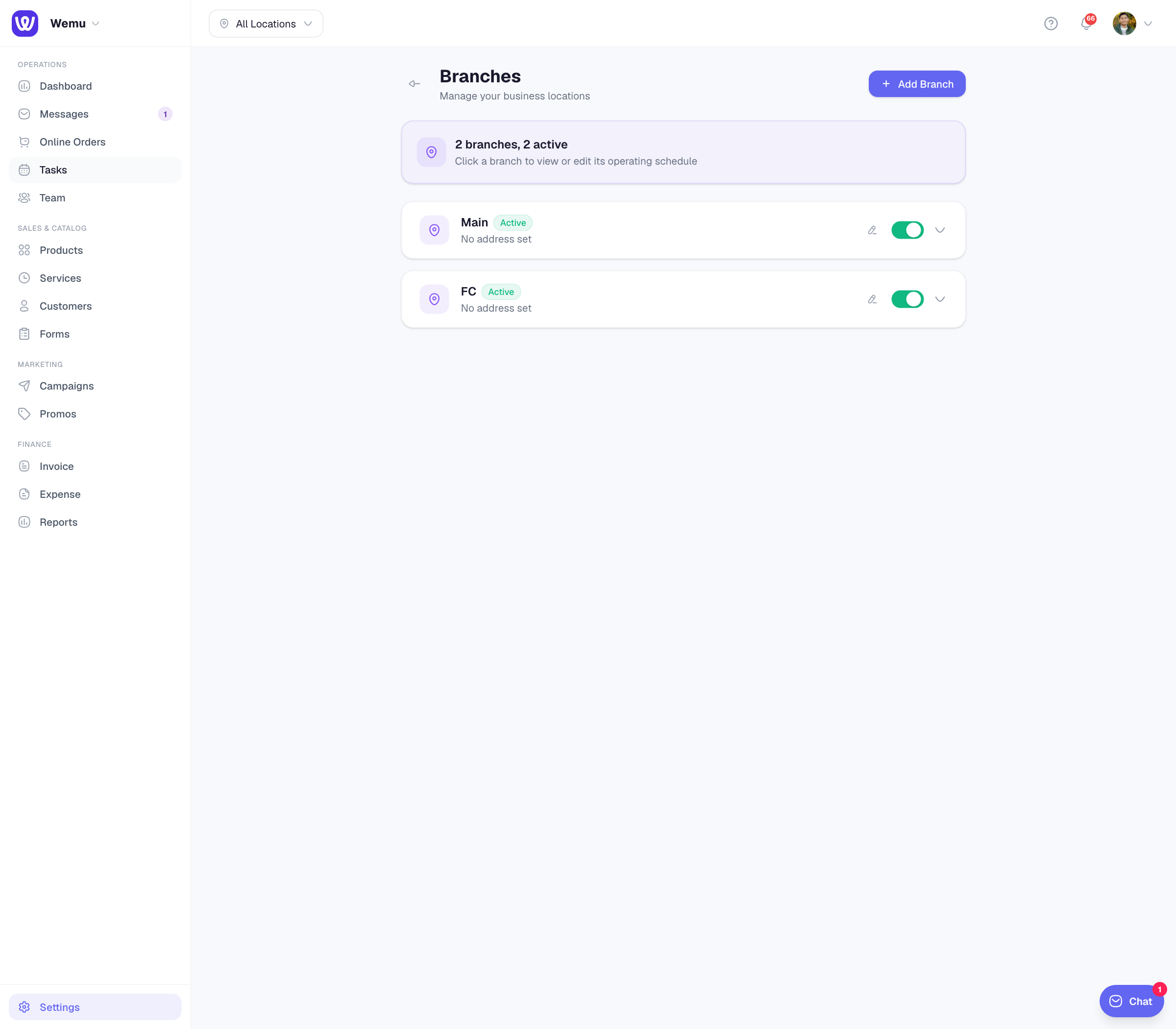
Managing your branches
- Click a branch to see its hours, phone and email
- Press the pencil icon to edit it
- Use the switch to make a branch Inactive. Inactive branches don't appear on your public page.
Working with more than one location
- Use the location switcher at the top of the app to look at one location or all of them. See Switching between locations.
- Choose where each person works on their Team form. See Assigning team to locations.
- On your public page, customers pick a location and see its address and opening hours.
Good to know
- Every branch uses the time zone set in Settings → Business Profile.
- Branches don't have a description, lunch breaks or holiday hours.
Tip: Name branches the way your team talks about them. "Downtown" is clearer than "Branch 2".