The branch switcher
When you have multiple locations, the branch switcher is your main tool for focusing on one location at a time. It appears at the top of the app and lets you toggle between branches instantly.
Navigate to: Top navigation bar → Branch name dropdown
How to switch locations
- Tap the branch name at the top of the screen
- A dropdown shows all your locations
- Select the branch you want to view
- The entire app filters to show only data for that location
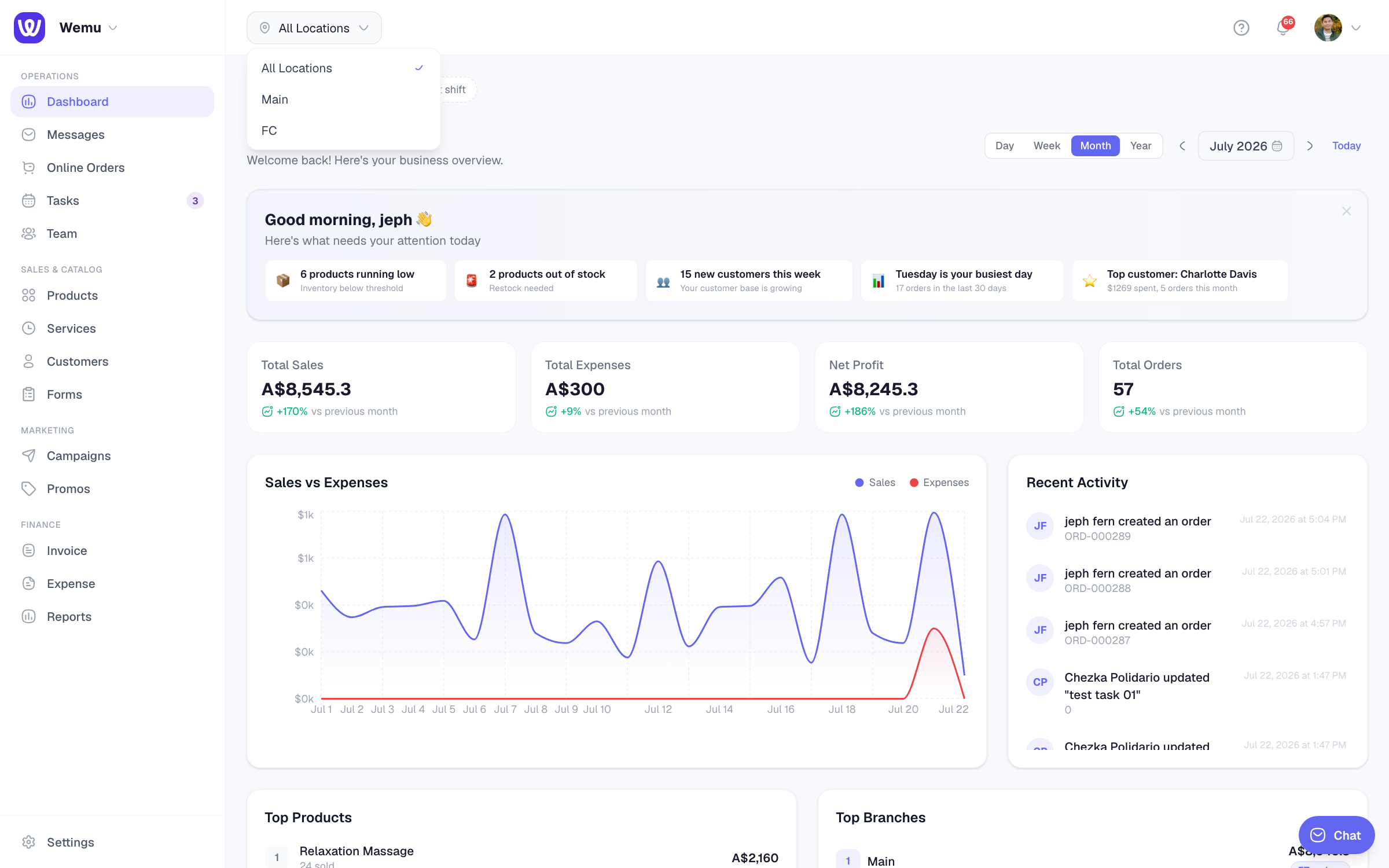
What changes when you switch
When you select a branch, these sections filter to that location:
- Dashboard — KPIs and charts for the selected branch
- Orders — Orders placed at that branch
- Bookings — Appointments and classes at that branch
- Products — Inventory levels at that branch
- Team — Staff assigned to that branch
- Expenses — Expenses tagged to that branch
- Reports — Metrics for that branch
"All Locations" view
Select All Locations from the switcher to see combined data across every branch. This is useful for a bird's-eye view of the whole business.
In the All Locations view:
- Dashboard shows combined revenue and order counts
- Reports aggregate data from all branches
- The team list shows everyone regardless of location
Quick navigation
Some screens let you see location information without switching. For example, the Reports section has a branch breakdown chart that shows all locations side by side.
Tip: If you manage one specific location, set it as your default branch. This way, Wemu opens with your branch pre-selected every time, and you don't have to switch manually each day.
Branch switcher on mobile
On mobile devices, the branch switcher is accessible from the top navigation bar. Tap the location icon to open the selector. The experience is the same as on tablet or desktop.