Why assign team members to locations
Assigning team members to specific locations ensures the right people show up in the right place. When a customer books at your Downtown branch, they should only see providers who actually work there.
Navigate to: Sidebar → Team → Select Member → Locations tab
Assigning a team member to a location
- Go to Team and open a member's profile
- Navigate to the Locations tab
- Select which branches this person works at
- Save
A team member can be assigned to one location or multiple locations.
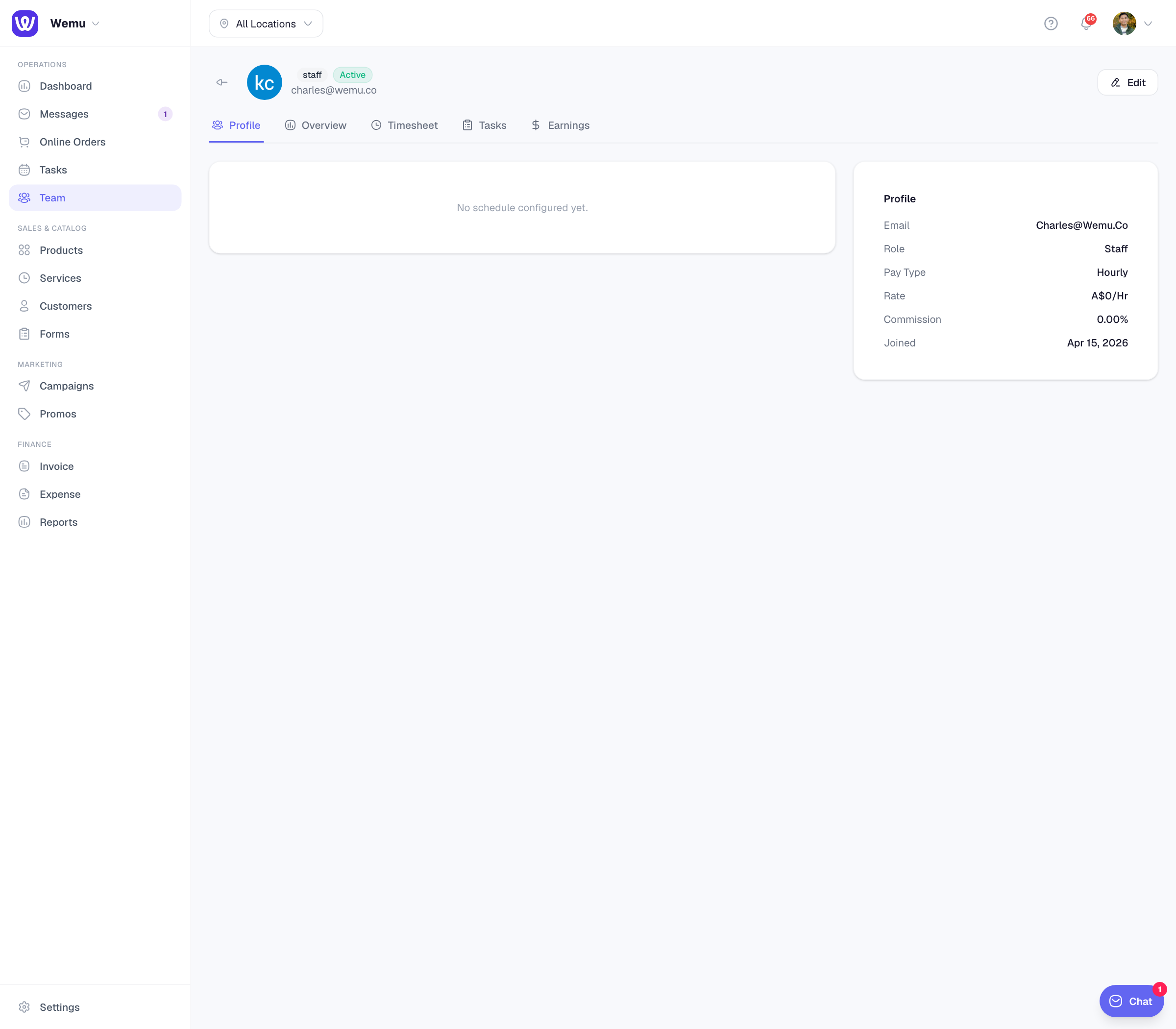
Multi-location team members
Some staff work at more than one branch. For example, a specialist might visit different locations on different days. When assigned to multiple locations:
- Their schedule can vary by location
- They appear as an available provider at each assigned branch
- Bookings show which location the appointment is at
Setting location-specific schedules
If a team member works at multiple branches, you can set different hours for each:
- Open the team member's profile
- Go to Schedule
- Select a location from the dropdown
- Set their hours for that specific branch
- Repeat for other locations
For example: Sarah works at Downtown Monday-Wednesday (9am-5pm) and at the Mall Thursday-Friday (10am-6pm).
Impact on bookings
When customers book, they first choose a location. The available providers list shows only team members assigned to that location. This prevents the confusing situation of booking someone at a branch where they don't work.
Transfer between locations
If a team member moves permanently from one branch to another:
- Open their profile
- Update their location assignments
- Update their schedule if hours differ
- Existing future bookings at the old location may need to be reassigned
Tip: Review location assignments quarterly. As your team changes, make sure assignments are current. A team member who transferred months ago but is still assigned to the old branch creates ghost availability that confuses customers.