Adding your team to Wemu
Team members are everyone who works in your business: stylists, therapists, instructors, cashiers and managers. Only owners and admins can add them. Wemu Core includes up to 3 team members; Growth has no limit.
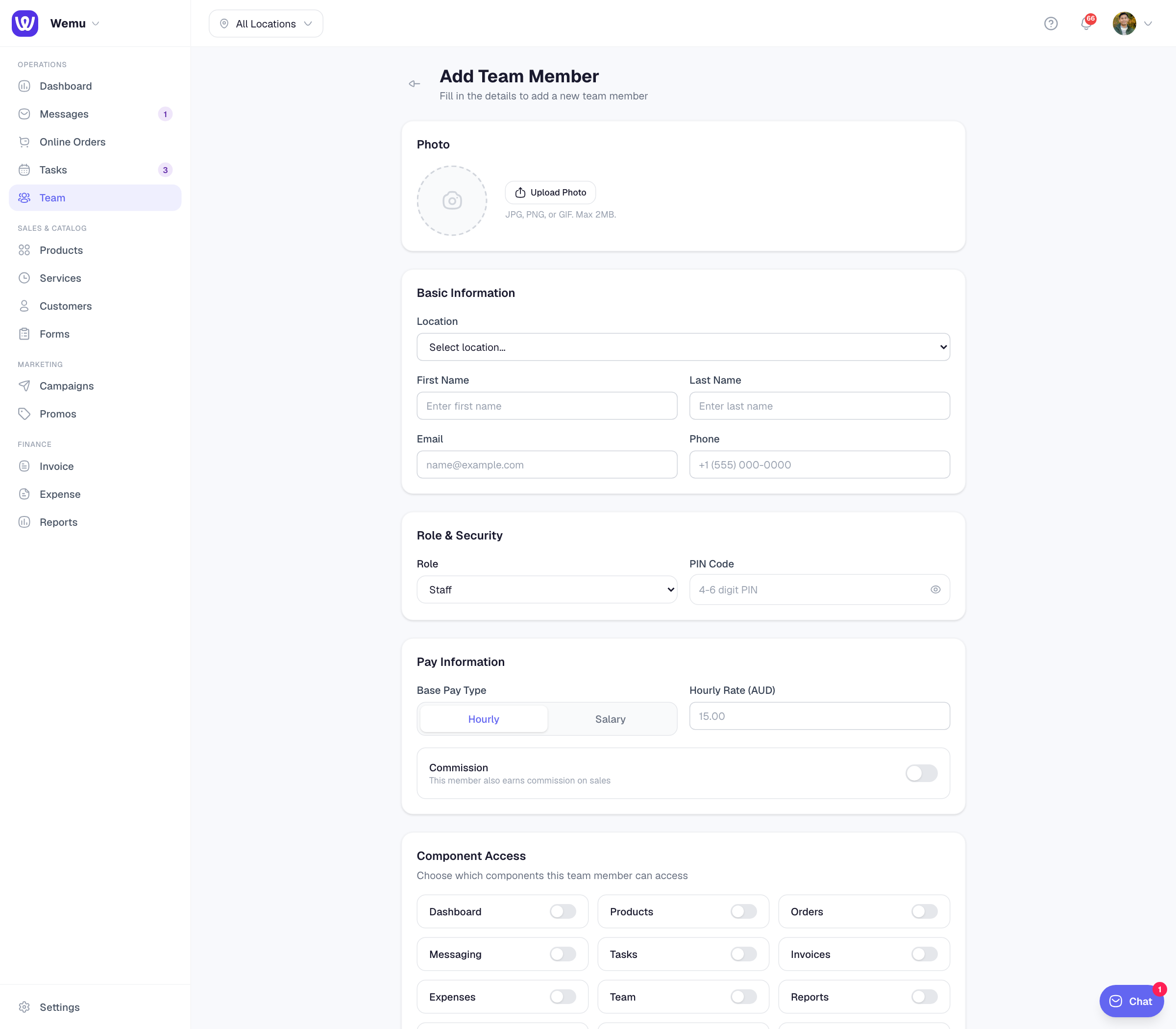
Navigate to: Team → Add Member
How to add a team member
- Go to Team and press Add Member
- Add a Photo if you like
- Under Basic Information, enter their First Name (required), last name, email and phone. If you have more than one branch, choose the Locations they work at, or leave them all unselected if they can work anywhere.
- Under Role & Security, choose their Role (Owner, Admin, Manager or Staff) and set a PIN Code. A PIN is required.
- Under Pay Information, choose Hourly or Salary and enter the rate. Turn on Commission to give them a default commission rate.
- Under Employment, add their employment type and usual hours if you use leave. See Staff leave.
- Under Component Access, switch on the parts of Wemu they can use. See Team member permissions.
- Press Save Team Member
Their sign-in
If you add an email address, Wemu creates their login and emails them a link to set a password. Someone who already uses Wemu gets an invitation to join your business instead. They then sign in on the web and in the Wemu Team app with that email and password.
To send it again, open their page (Team → their name), press Edit, then Send Invite.
Without an email, they can't sign in to the web or the Team app, but they can still use their PIN on a Wemu POS tablet that's signed in to your business.
Roles
- Owner: full access, including billing
- Admin: like an owner, without billing and plan management
- Manager: day-to-day operations; managers approve till actions and leave
- Staff: their own work, tasks and the till
What each person can open is set by their Component Access switches. Only owners and admins can add or remove people, change someone's role, access or pay, or change someone else's PIN or email.
PIN codes
- A PIN signs someone in on Wemu POS, clocks them in and out, and lets a manager approve till actions
- Use 4 digits. The form accepts up to 6, but the Wemu POS PIN pad takes 4.
- PINs don't need to be unique, because staff tap their own photo before entering it
- Owners and admins can see everyone's PIN. Everyone else sees •••• in place of other people's PINs.
See Staff PIN sign-in & audit trail.
Schedules and services
- Roster their shifts in Team → Schedule. When a customer picks them online, their shifts decide the times offered. See Creating shift schedules.
- Choose who performs each service on the service itself, under Provider & Location → Assigned Staff.
- If customers can choose who they book with (Settings → Storefront → Bookings → Let customers choose a staff member), they see the name and photo of each assigned team member.
Tip: Avoid obvious PINs like 1234 or 0000, and ask your team to keep theirs private. Every sale is recorded against whoever signed in.