What are shift schedules
Shift schedules define when each team member is expected to work. You can create named shifts (Morning, Afternoon, Evening, etc.) and assign them to team members on a weekly basis.
Navigate to: Sidebar → Team → Shifts tab
Creating a shift template
- Go to Team > Shifts
- Tap + Create Shift
- Name the shift (e.g., "Morning Shift", "Evening Shift")
- Set the start and end time
- Optionally add a color to help visually distinguish shifts
- Save the shift template
Assigning shifts to team members
- Open the Schedule view (weekly calendar layout)
- Tap on a day for a team member
- Select a shift template from the list
- The shift appears on the calendar
You can also drag to copy shifts across multiple days.
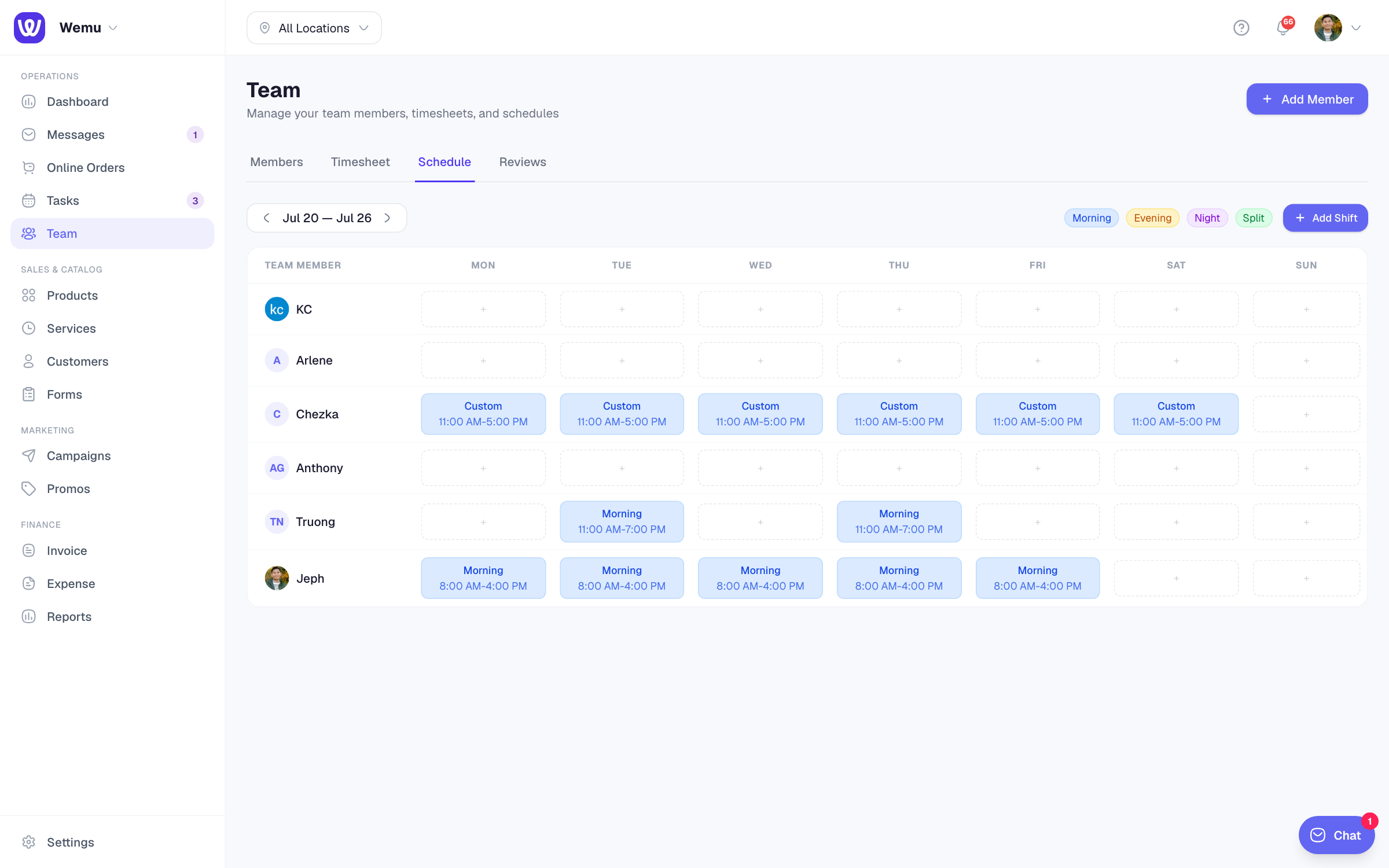
Weekly schedule view
The schedule view shows all team members in rows and days of the week in columns. Each cell shows the assigned shift with its color and time. This gives you a bird's-eye view of who's working when.
Recurring shift patterns
If a team member works the same shifts every week, you can set it as a recurring pattern:
- Set up one week's schedule
- Tap Repeat Weekly
- The pattern continues until you change it
Publishing schedules
Once you've finalized the schedule:
- Review the week's assignments
- Tap Publish
- Team members can view their upcoming shifts in the app
Tip: Try to publish schedules at least one week in advance. Your team will appreciate having predictability, and it gives you time to handle swap requests before the shifts start.
Handling conflicts
Wemu warns you if you try to assign overlapping shifts to the same person. It also highlights gaps where no one is scheduled, helping you ensure proper coverage during business hours.
Swap requests
Team members can request to swap shifts with each other. The request comes to you for approval before the swap is finalized.