How commissions work in Wemu
Commission in Wemu is always a percentage of what was sold. There are two levels:
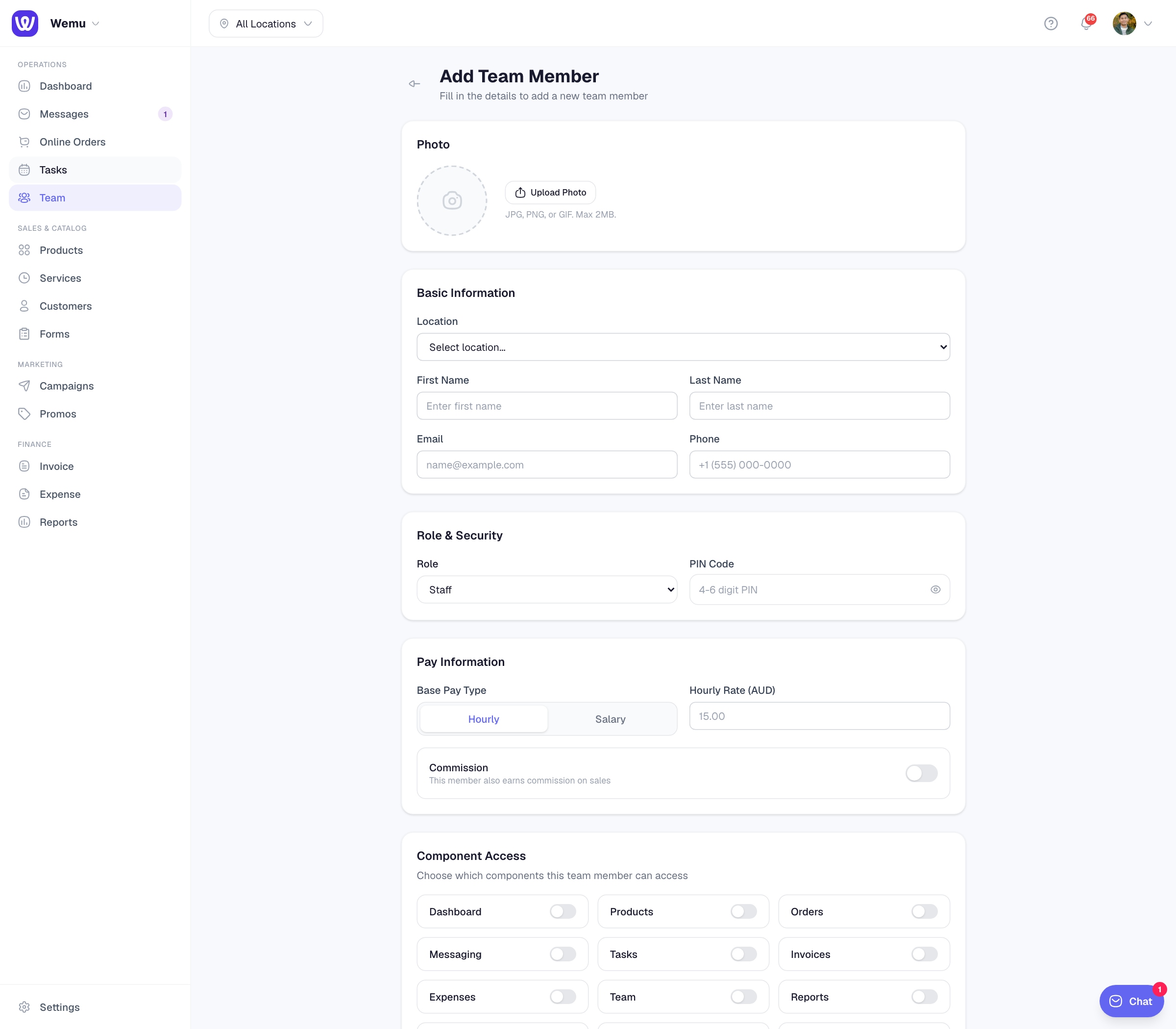
- The team member's default rate, set on their Team form. It applies to every service they're credited with.
- A rate on the item itself: a Commission % on a service or product replaces the member's rate for that item.
A retail product earns nothing unless it has its own Commission %. A rate of 0 on an item means that item never earns commission. There are no fixed-amount commissions.
Set a team member's default rate
Navigate to: Team → team member → Edit → Pay Information
- Turn on Commission
- Enter the Commission Rate (%), for example 40
- Press Update Team Member
Only owners and admins can change someone's pay or commission.
Set a rate on a service or product
- Service: open it under Services and fill in Commission % (optional) in Service Details. Leave it blank to use each member's default rate.
- Product: open it under Products and fill in Commission % (optional) in Pricing & Inventory. Leave it blank and the product pays no commission.
For example: haircuts at the stylist's 40% default, colour treatments set to 35%, and a shampoo you want the team to recommend set to 10%.
Who gets the commission
Commission goes to the staff member credited on each item of a sale. In Wemu POS 1.5.0 or later, tap Assign on a cart line to choose who did it, or choose Apply to every item. Lines nobody is assigned to go to the staff member on the order, usually whoever was signed in at the till. Earlier versions of Wemu POS credit the whole sale that way.
Only completed sales count, and commission is worked out on each item's price.
See what's owed
Navigate to: Reports → Overview → Commission
For the period you pick, the Commission card lists each team member with their default rate, the items they sold (and how many were retail), the revenue that earned commission, and the commission owed. Sales with no staff member show as Unassigned. See Commission rates & the commission report.
Tip: Review your rates every few months. If nobody wants to do a service, the rate may be too low; if margins are tight, it may be too high.