Your current plan
Navigate to: Settings → Subscription
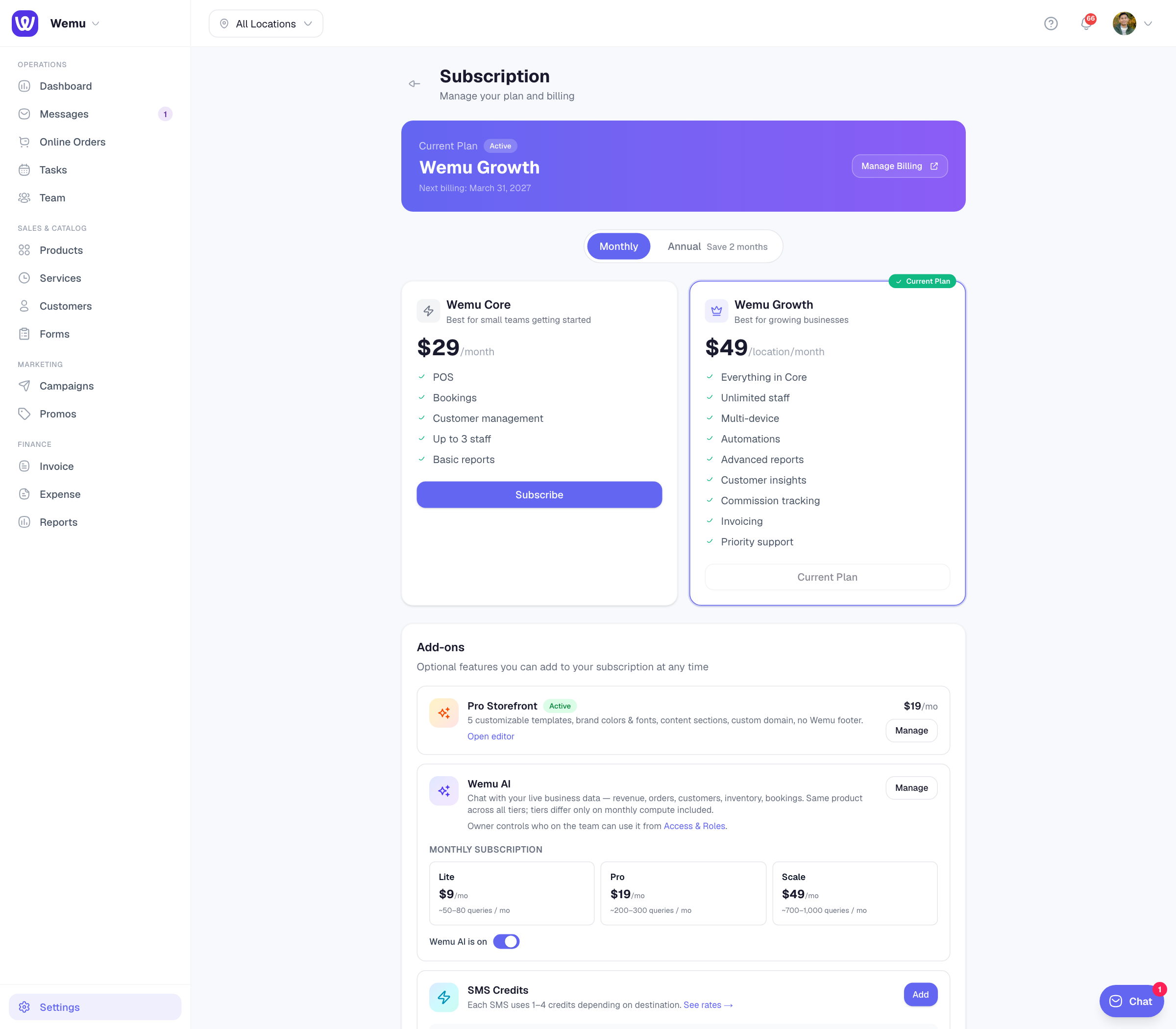
The card at the top shows your plan and its status: Free Trial with the days left, Active with your next billing date, or Past due.
Subscribing
- Go to Settings → Subscription
- Choose Monthly or Annual above the plan cards (annual gives you 2 months free)
- Press the button on the plan you want
- Pay in Stripe's secure checkout, then you're brought back to Wemu
If you choose Growth while your trial is still running, your first charge waits until about when your trial ends, and the card keeps showing Free Trial until then. With less than a day of trial left, you're charged straight away.
Changing plan
To move between Core and Growth once you're subscribed, email us at [email protected] and we'll switch your plan, so you're never billed for two plans at once. Don't press Subscribe on the other plan's card: that starts a second subscription.
Billing, invoices and cancelling
Press Manage Billing. It opens Stripe's secure billing portal, where you can update your card, see and download invoices, or cancel your subscription. The button appears once you have a paid subscription.
Add-ons
Pro Storefront, Training, Wemu AI, SMS Credits and Email Credits each have their own card under Add-ons on the same page. Training is switched on per branch on its card, and you choose or change an SMS pack on its card. To stop an SMS pack, or to add or stop Pro Storefront or Wemu AI, email us at [email protected]. They're billed on your Wemu subscription, so cancelling in Stripe's billing portal cancels the whole subscription.
If a payment fails
Your account is paused and the page shows Payment overdue. Press Pay now / update card to pay the open invoice or change your card. Access comes back as soon as the payment clears, with all your data where you left it.