Invoice statuses
- Draft: saved, not sent
- Sent: emailed to the customer and waiting for payment
- Paid: paid in full
- Overdue and Cancelled appear as filters on the invoice list
The Invoice list has a tab for each status, with a count.
When the customer pays online
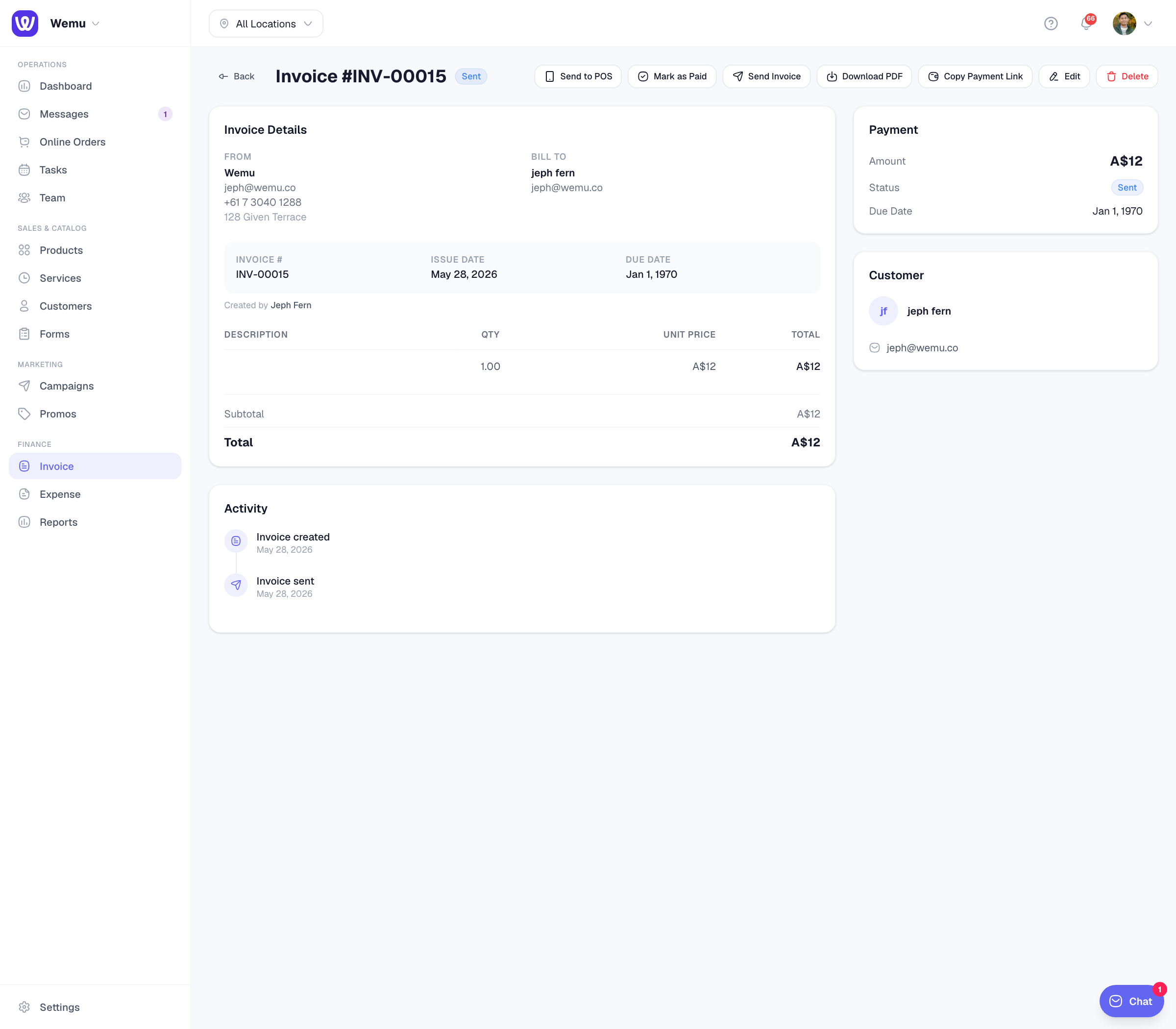
The invoice email has a pay button, and Copy Payment Link gives you the same link to send another way. The customer pays by card, and the invoice turns Paid by itself. This needs card payments set up; see Connecting Stripe.
Marking it paid yourself
Navigate to: Sidebar → Invoice → open the invoice → Mark as Paid
Use this when the customer paid another way, such as cash or a bank transfer. One press marks the whole invoice paid, with today as the paid date.
When an invoice is marked paid, Wemu also:
- takes catalogue products on the invoice off your stock, for products that track stock
- adds the total to the customer's total spent
- drafts purchase orders to your suppliers, if the invoice came from an accepted quote. See Quotes.
Taking payment at the till
Send to POS sends the amount to a Wemu POS phone or tablet so you can take a card there. For now the invoice isn't marked paid when that payment goes through, so press Mark as Paid afterwards.
Good to know
- There are no partial payments. Mark as Paid records the full amount; you can't enter a method, date or part payment.
- Wemu doesn't change an invoice to Overdue by itself. To chase late payers, check the Due Date column on the Sent tab.
- A paid invoice can't be deleted; it's kept as the record of the payment.
Tip: Set a weekly time to look over your Sent invoices and follow up anything past its due date.