Ways to send an invoice
- Send Invoice: emails it to the customer straight away
- Copy Payment Link: copies a link to a page where the customer can see the invoice and pay by card
- Download PDF: saves the invoice as a PDF to send or print yourself
Navigate to: Sidebar → Invoice → open the invoice
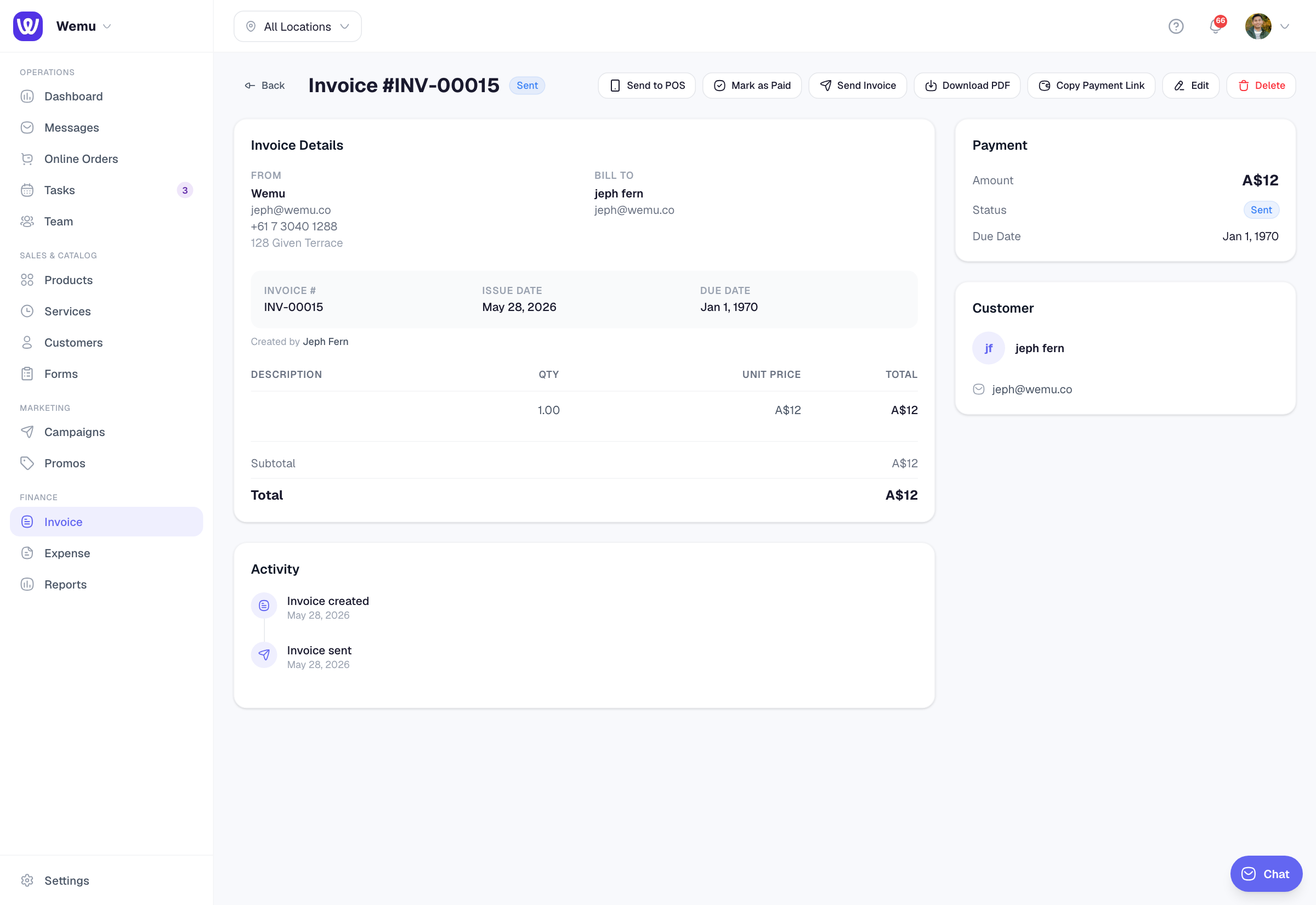
Sending by email
Press Send Invoice on the invoice's page, or on the new invoice form to save and send in one step. There's no extra form: it goes to the email address of the invoice's customer.
The customer gets an email titled "Invoice INV-00012 from" your business name, with the invoice attached as a PDF and a button to pay online. Online payment needs card payments set up; see Connecting Stripe.
Make sure the customer has an email address. Without one, nothing is sent.
Sending it again
Send Invoice stays on the page while an invoice is Sent, so you can press it again if the customer didn't get it. An overdue invoice stays overdue when you resend it.
If you change an invoice, open it afterwards and press Send Invoice on its page. Saving the edit form doesn't email the customer, even when you press Send Invoice there.
Sharing a payment link
Copy Payment Link shows on invoices that are Sent or Overdue once card payments are set up. Paste the link into a text, WhatsApp or any message. The invoice turns Paid when they pay.
Good to know
- Wemu doesn't track whether the customer opened the email.
- There's no way to send several invoices at once; send each from its own page.
- From a customer's page you can also Send invoice or Send account statement from the actions menu. See Customer profiles.
Tip: Add a short thank-you in the invoice's notes. It appears on the invoice your customer receives.