What problem this solves
You have three staff but only one facial machine. Two customers book a facial at the same time with different staff: both staff are free, but there's only one machine. Resources fix this. Tell Wemu which services need which room or machine, and online booking stops offering times when every one is in use.
Navigate to: Settings → Resources
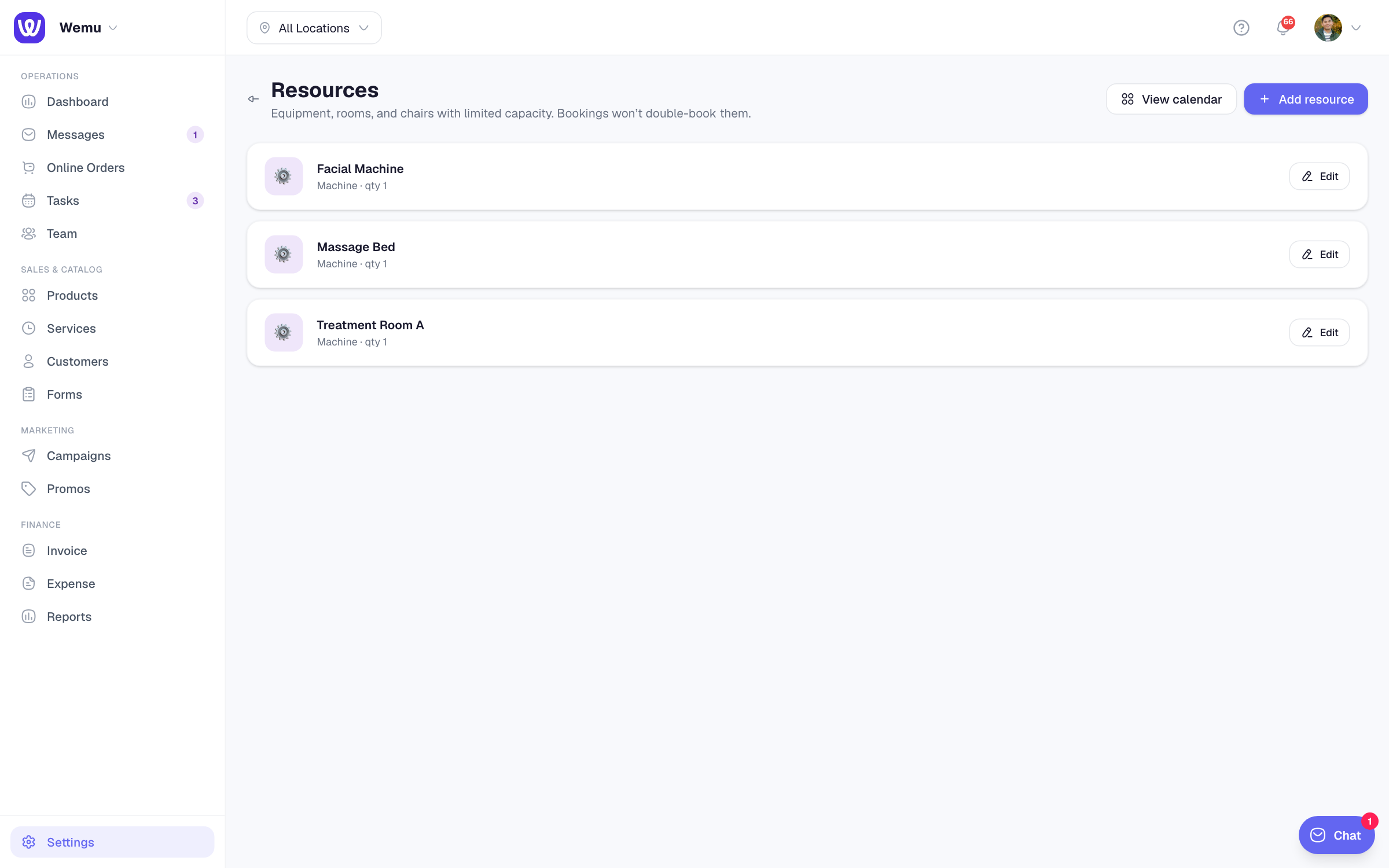
Adding a resource
- Press Add resource
- Name: for example Facial Machine or Treatment Room A
- Category: Machine, Room, Chair or Other
- Quantity: how many you have. Three identical rooms can be one resource with a quantity of 3.
- Cleanup minutes: time to keep it free after each use
- Branch: one branch, or All branches
- Description: optional notes for staff
- Leave Active ticked so it counts toward availability
- Press Add resource
To change or delete a resource, press Edit on it. A resource can't be deleted while upcoming bookings use it.
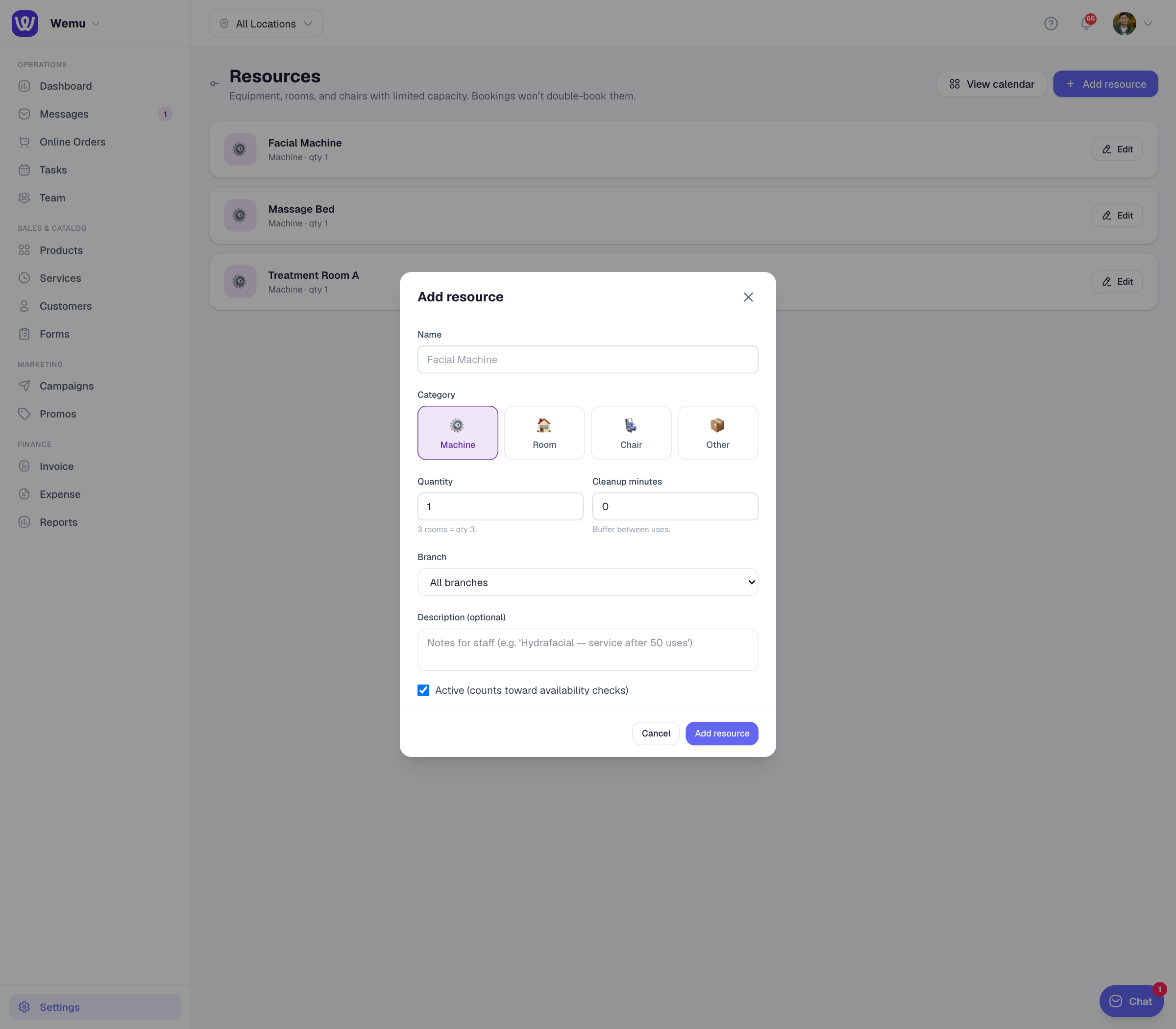
Linking a resource to a service
- Go to Services and open the service
- In the Resources Required card, tick each resource it needs
It saves as you tick. The badge next to a ticked resource shows how long a booking holds it, which is the service's duration.
What happens when customers book online
- Times when every unit of a needed resource is in use aren't offered.
- If two customers race for the last unit, the second booking is refused and they're asked to pick another time.
- A booking holds the resource for the length of the service, plus the resource's cleanup minutes.
The resource calendar
Navigate to: Settings → Resources → View calendar
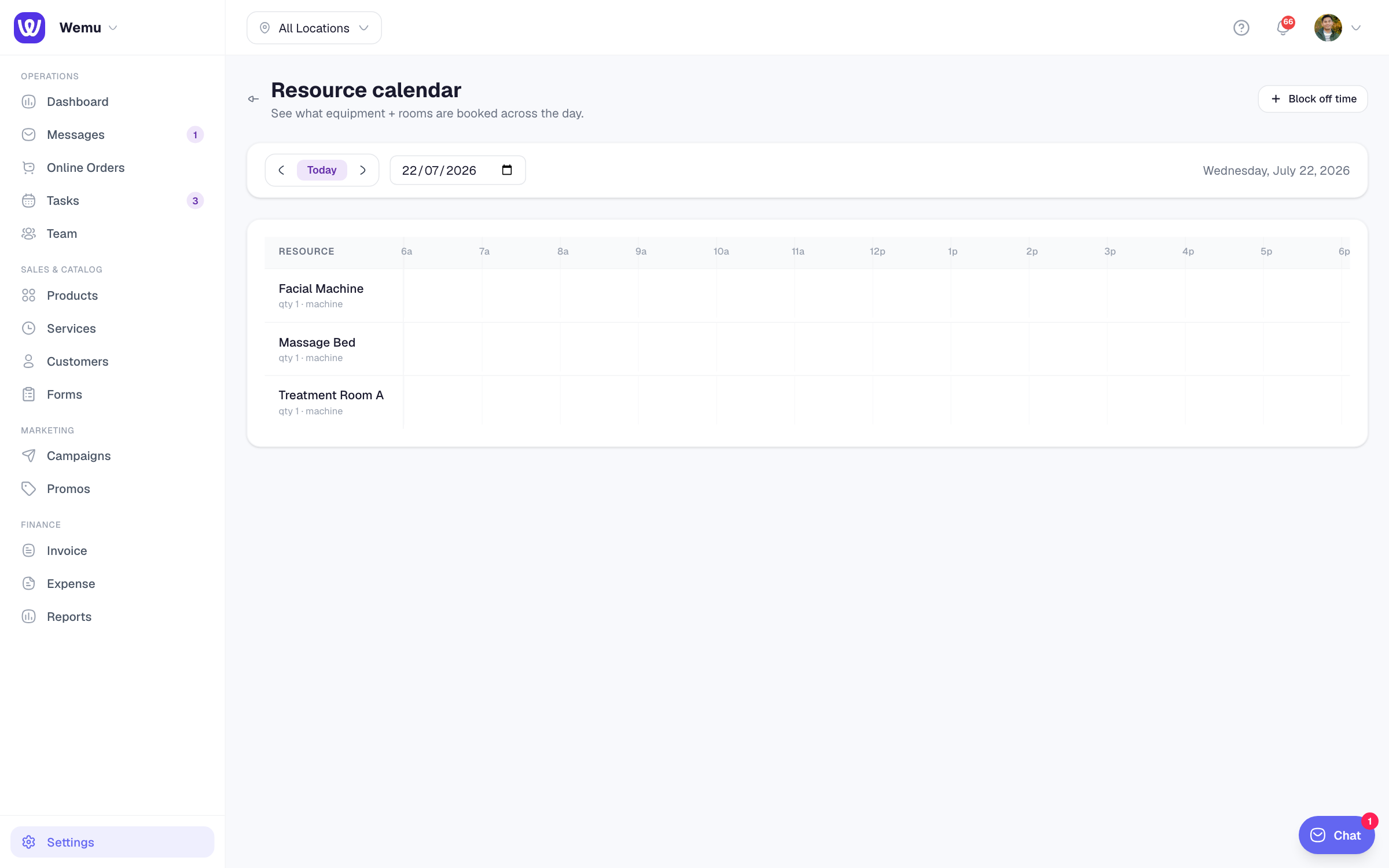
Each resource has its own lane across the day, with bookings shown at their times. Tap a booking to open it. Use the arrows, Today or the date box to change day.
Blocking off a resource
When a machine is being serviced or a room is out of action:
- On the resource calendar, press Block off time
- Choose the Resource, then From and To
- Add a Reason if you like, such as Servicing or Deep clean
- Save
Online booking treats a block like a booking. To remove a block, tap it on the calendar.
Equipment today
The Equipment today card on your Dashboard shows how busy each resource is today, with a red, amber or green dot. Tap it to open the resource calendar.
Good to know
- Resources are checked for bookings customers make online. Bookings your team adds in Tasks or Wemu POS don't check or hold resources, so look at the resource calendar first.
- For now, a booking that's cancelled or moved to a new time keeps its hold on the resource at the original time.
Tip: Only add the things that really run out. If you have more chairs than staff, chairs don't need to be resources.
Ask Wemu AI: "the facial needs Room 2" sets which rooms or equipment a service uses while it's booked. A booking Wemu AI makes is refused if a resource is taken, but like bookings your team adds in Tasks, it doesn't hold the resource. See What Wemu AI can do.