What to look at
Each promo has its own detail page with three blocks of metrics:
📍
Marketing → Promos → click any promo
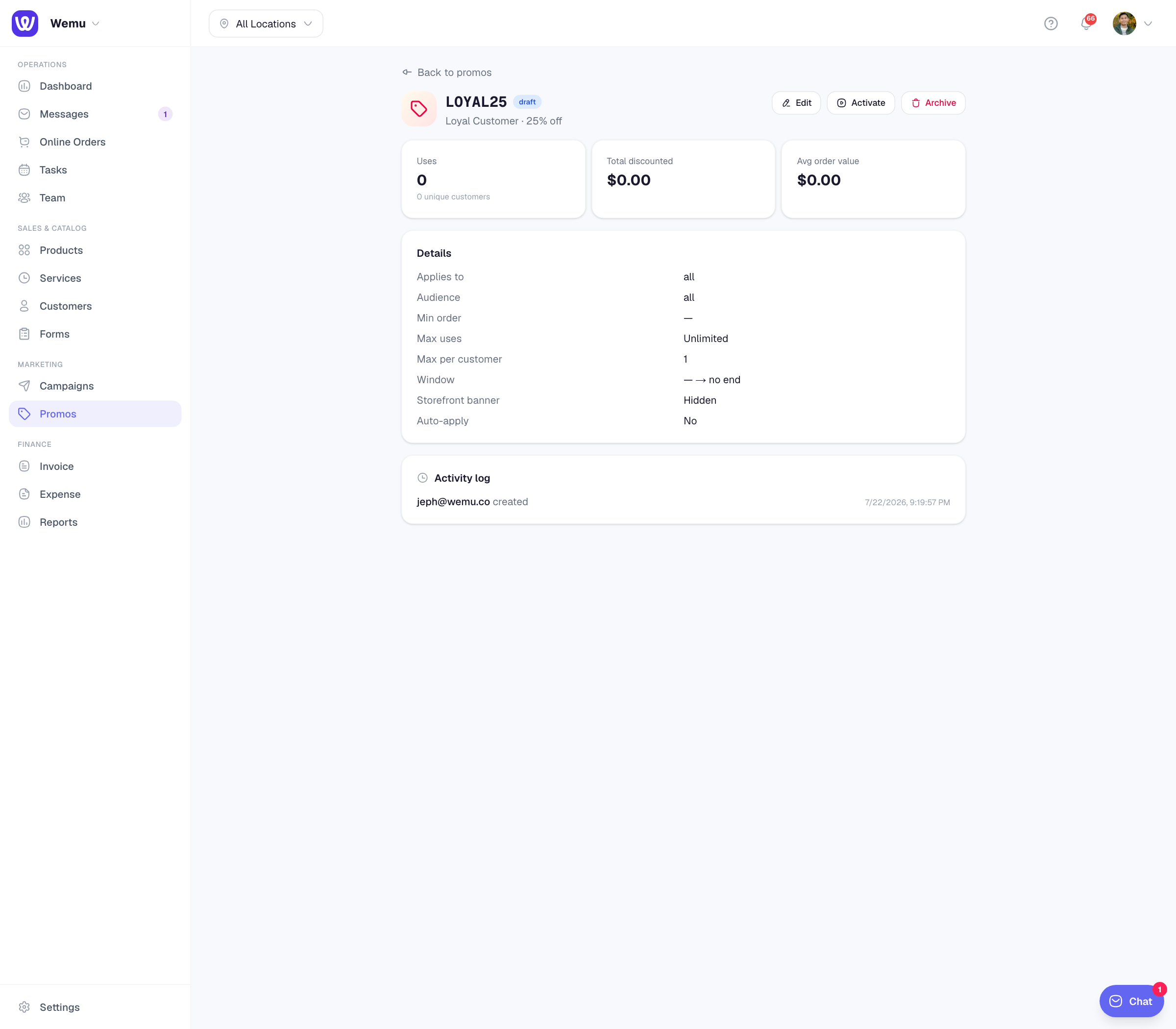
1. Headline metrics
- Uses — total redemptions to date
- Unique customers — how many distinct customers redeemed
- Total discounted — cumulative dollar value of discounts given
- Avg order value — average size of orders that used this promo
2. Details panel
A flat read-only summary of every config setting — applies to, audience, min order, max uses, window, banner/auto-apply flags. Useful for quickly verifying what a promo is set up to do.
3. Activity log
Append-only history of every change to the promo. Each row shows:
- Who — actor's name + email (pulled from their JWT at edit time)
- What — action (created / updated / paused / activated / archived)
- When — timestamp
- Diff — exact field-level before-and-after for updates
The activity log is your audit trail when something seems off. If a code that worked yesterday stopped working today, scroll the log to see what changed.
Filtering the promo list
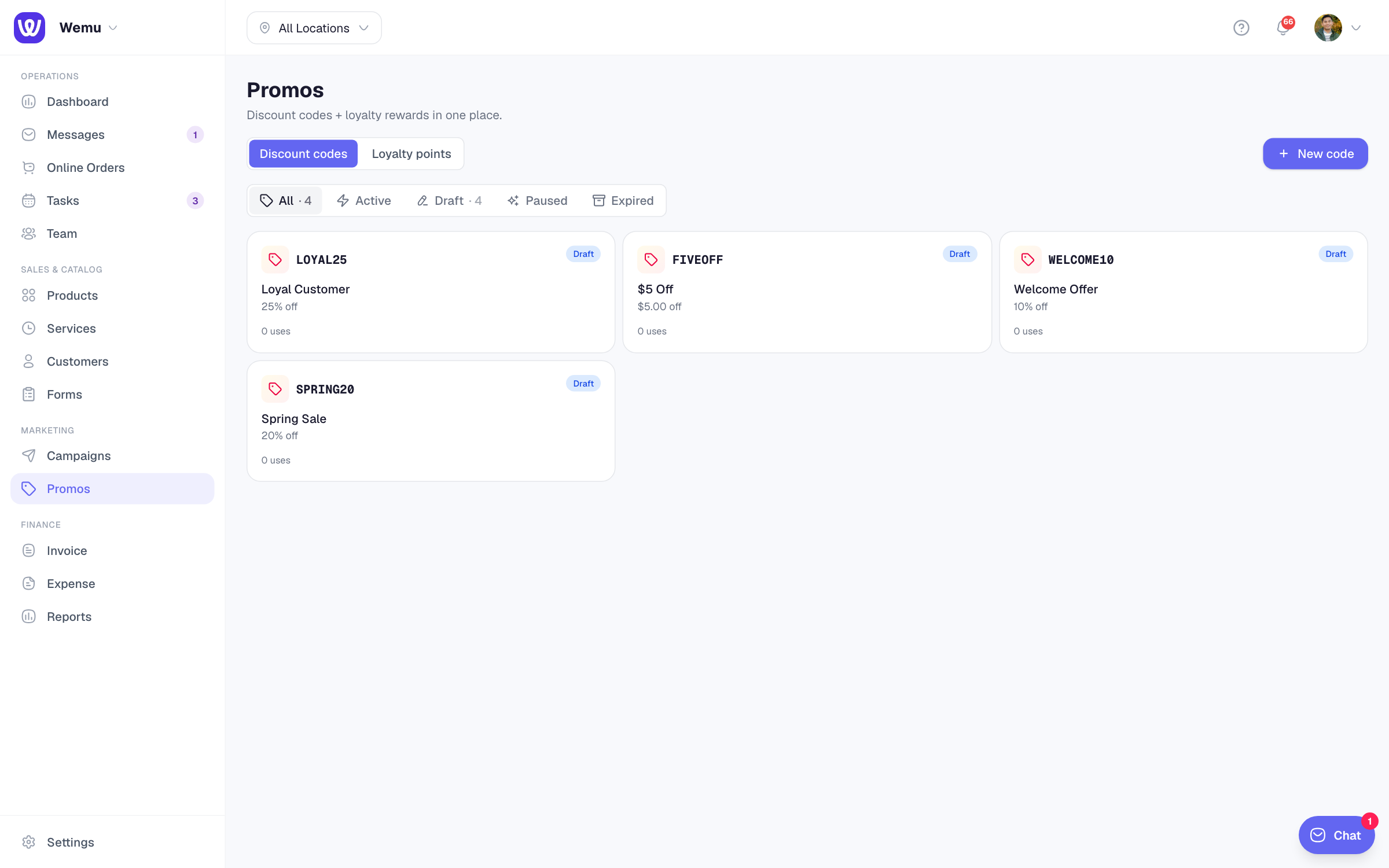
The promo list page has a segmented status filter at the top:
- All — every promo, archived included
- Active — currently redeemable
- Draft — saved but not enabled
- Paused — temporarily disabled, can be re-activated
- Expired — past end date or archived
Pausing vs archiving
- Pause — temporarily disabled. Customers see "This code is paused." at validate. Can be re-activated anytime. Use for "we're out of stock, pause the discount until restocked" cases.
- Archive — soft-deleted. Removed from the active list but kept for audit history. Cannot be re-activated; create a new promo instead.
What to compare across promos
When you're A/B testing offers, look at:
- Uses per dollar of marketing — how many redemptions did each promo earn relative to the campaign send
- Discount-to-revenue ratio — total discount given ÷ revenue captured (lower = more profit margin)
- Unique customers ratio — uses / unique customers. A ratio of 1.0 means each customer used it exactly once; >1.0 means they came back.
A future release will surface a portfolio-level dashboard summing all promos' performance over time.