What is order messaging
Order messaging lets you communicate directly with customers about their orders without leaving Wemu. You can send updates, ask questions, or respond to customer inquiries — all tied to the specific order.
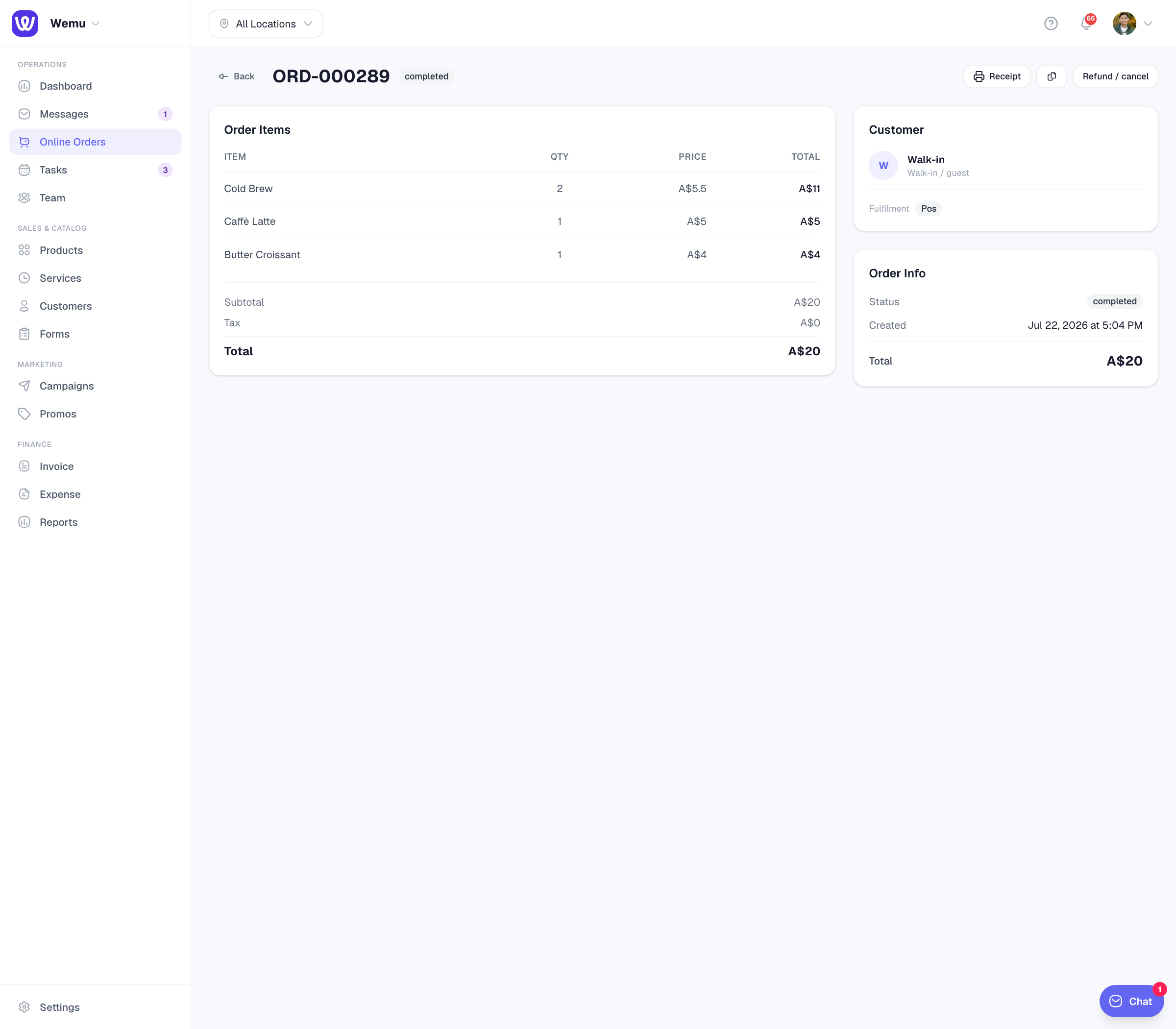
Navigate to: Sidebar → Orders → Select Order → Messages section
Sending a message
- Open any order
- Scroll to the Messages section
- Type your message
- Tap Send
The customer receives a notification and can reply directly.
Common use cases
- Clarifying order details — "Did you want the blue or the black version?"
- Notifying about delays — "Your order is taking about 15 more minutes. Sorry for the wait!"
- Confirming substitutions — "We're out of oat milk. Would almond milk work instead?"
- Delivery updates — "Your order is on its way! ETA is about 20 minutes."
- Post-order follow-up — "Thanks for your order! Let us know if you need anything else."
Message notifications
When a customer replies, you'll see a notification badge on the order. Messages from customers appear in the order's message thread, so the conversation stays organized and contextual.
Quick replies
For common messages you send often, you can set up quick replies:
- Go to Settings > Quick Replies
- Create templates like "Your order is ready for pickup!" or "We've received your order and are preparing it now."
- When messaging, tap the quick reply icon to insert a template
Tip: Respond to customer messages quickly. A fast reply builds trust and can prevent cancellations. Even a brief acknowledgment like "Got it, working on it!" is better than silence.
Message history
All messages for an order are saved in the order history. This is useful for resolving disputes or reviewing what was communicated. You can scroll through the full conversation at any time by opening the order.