What the board shows
Navigate to: Sidebar → Online Orders
Orders from the Shop tab on your public page land here: pickup, local delivery and shipping orders. Sales rung up in Wemu POS and dine-in orders don't appear on this page; you'll find them in Reports → Orders.
The page has three tabs:
- Recent: the live board
- Completed: finished orders, once they've been done for five days
- Cancel/Return/Refund: cancelled, returned and refunded orders, including orders with a partial refund
The four columns
- Pending: new orders waiting for you to accept them. An order whose online payment hasn't gone through yet shows Awaiting payment.
- Processing: orders you've accepted and are getting ready
- Shipped: orders that are out for delivery, posted, or ready to collect
- Delivered: finished orders. They stay on the board for five days, then move to Completed.
Each column shows how many orders it holds and what they add up to. The board refreshes itself every 10 seconds, so new orders appear without reloading the page.
On an order's own page the same stages are called Approved, Shipping and Done.
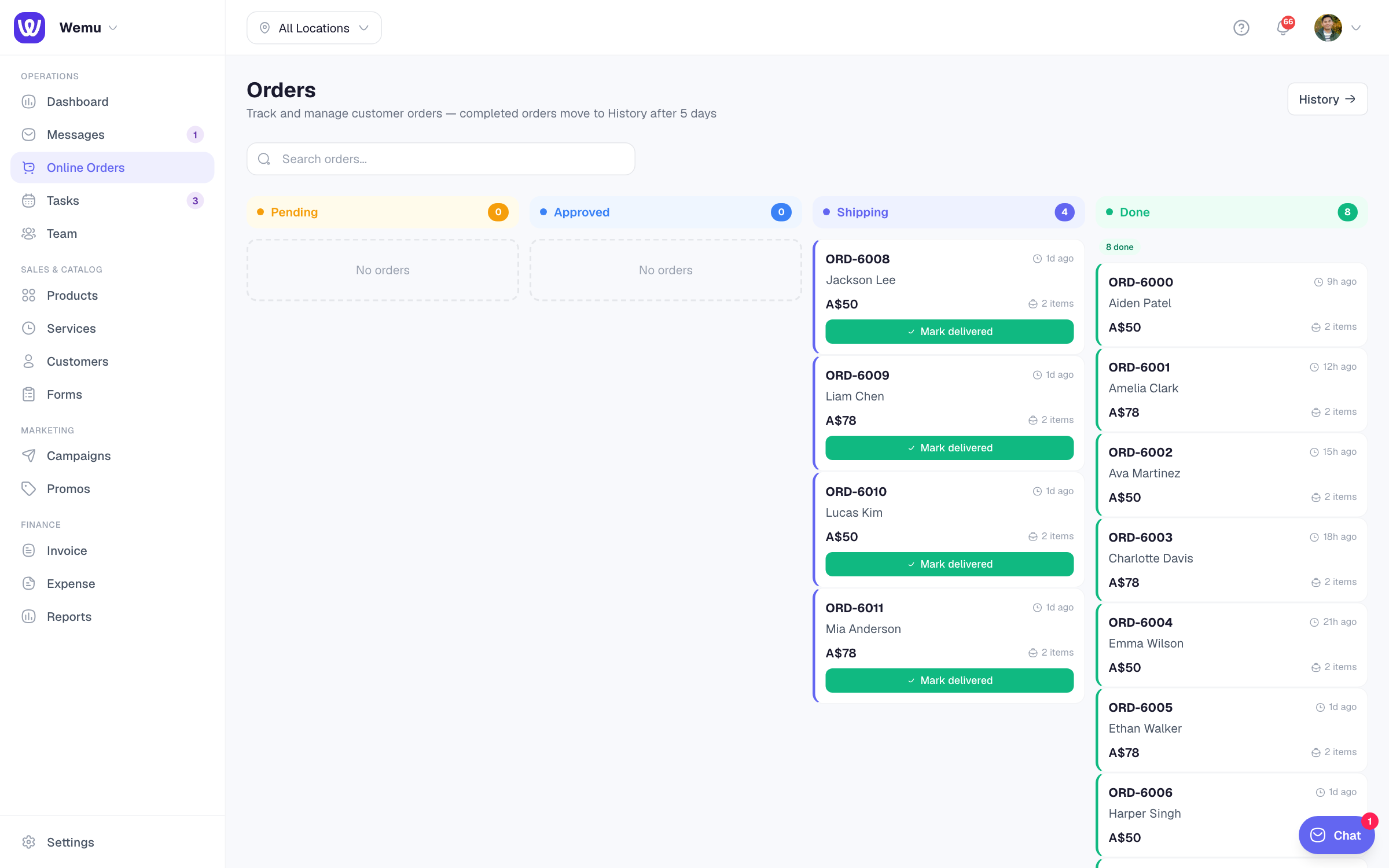
Moving an order along
Cards don't drag. Each card has a button for its next step:
- Accept order on a pending order moves it to Processing
- Cancel unpaid order clears a checkout the customer never paid for
- Mark ready (pickup) or Mark shipped (delivery and shipping) moves a Processing order to Shipped. For a shipping order, Wemu asks for the carrier and tracking number first.
- Mark picked up or Mark delivered finishes it
To print, refund or add tracking, open the order. See Processing online orders.
What each card shows
- The order number and how long ago it was placed
- The total and the customer's name (Walk-in when there's no name)
- A Shipping badge for orders going out with a carrier
- The items, when you tap the item count to expand them
Search and filters
- Search by order number or customer name. On Completed and Cancel/Return/Refund, search also finds the customer's email.
- Press Filter for Fulfilment (All, Delivery, Pickup or Shipping) and Sort (Newest, Oldest or Highest value).
- Completed and Cancel/Return/Refund show 50 orders at a time. Press Load more for the next 50, up to 200, and search to find anything older.
Online orders at the counter
Wemu POS can show the same orders on a tablet with a sound for each new one. See Live online orders on the POS. Kitchens use the Kitchen display instead; see Kitchen Display, Floor & Manager views.
Tip: Keep Online Orders open on a screen at the counter during busy periods so new orders get accepted quickly.