When to refund or cancel
- Cancel an order when it hasn't been fulfilled yet and the customer no longer wants it
- Refund an order (fully or partially) when the customer has already received it but there's an issue
Navigate to: Sidebar → Orders → Select Order → Refund / Cancel
Cancelling an order
- Open the order you need to cancel
- Tap Cancel Order
- Select a cancellation reason (optional but recommended)
- Confirm the cancellation
Cancelled orders are moved out of the active workflow. If payment was already collected, you'll be prompted to process a refund.
Processing a full refund
- Open the order
- Tap Refund
- Select Full Refund
- Choose the refund method (back to original payment method, cash, or store credit)
- Add a note explaining the reason
- Confirm the refund
Processing a partial refund
Sometimes only part of the order needs to be refunded:
- Open the order
- Tap Refund
- Select Partial Refund
- Choose which items to refund, or enter a custom refund amount
- Select the refund method
- Add a reason note
- Confirm
Inventory adjustments
When you refund a product, Wemu asks if the item is being returned to stock. If yes, the inventory count is automatically increased. If no (for example, the item was damaged), the stock stays as is.
Refund permissions
Only team members with refund permissions can process refunds. This prevents unauthorized refunds. You can configure who has this permission under Team > Permissions.
Tip: Always add a reason note when processing refunds. This creates an audit trail that helps you identify patterns — like a product that gets returned frequently, which might indicate a quality issue.
Viewing refund history
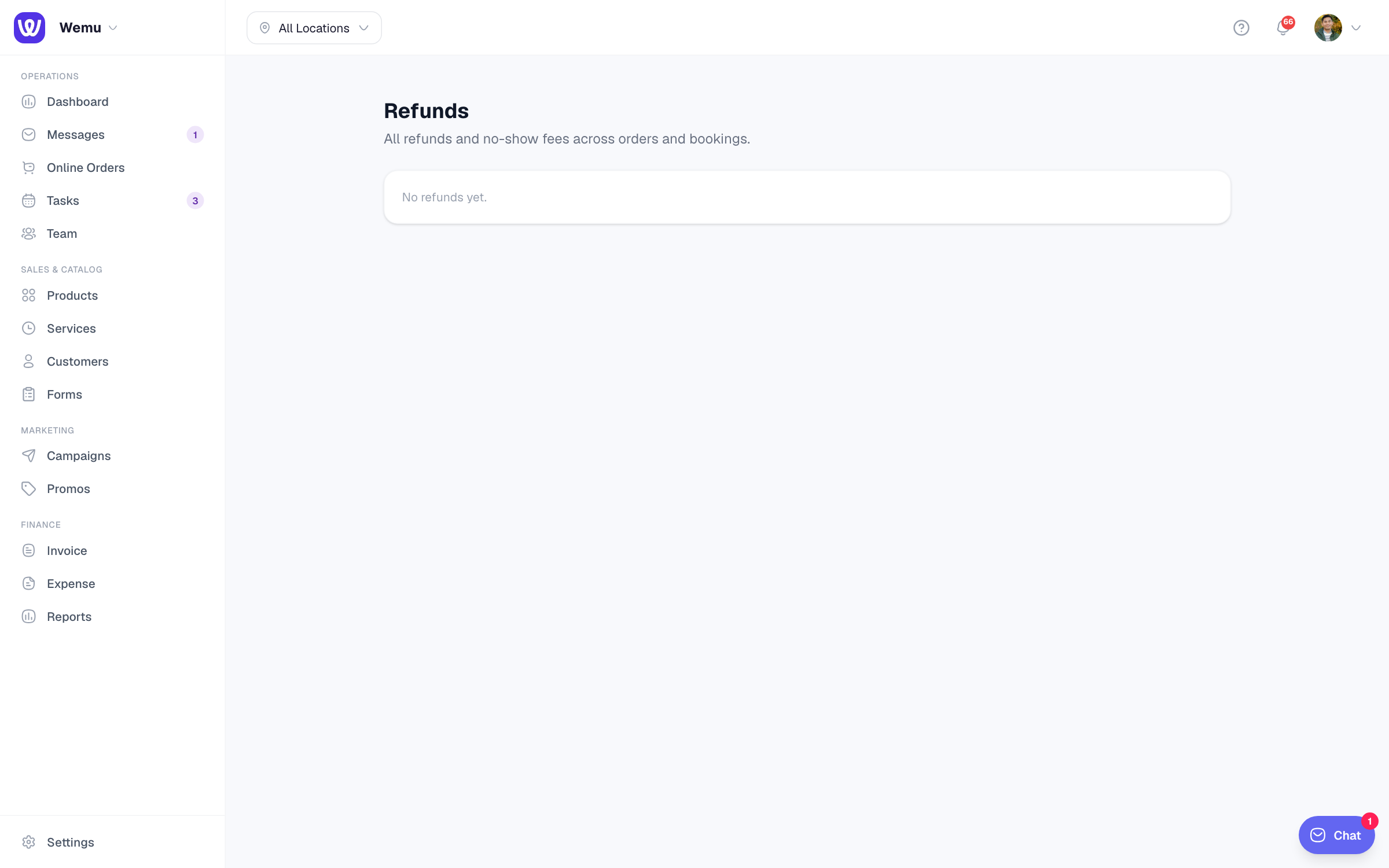
All refunds are tracked in the order history and in your financial reports. Go to Reports > Sales and filter by refunds to see totals, reasons, and trends over time.