Why track inventory
Knowing how much stock you have prevents overselling, helps you reorder on time, and gives you better insight into which products move fastest.
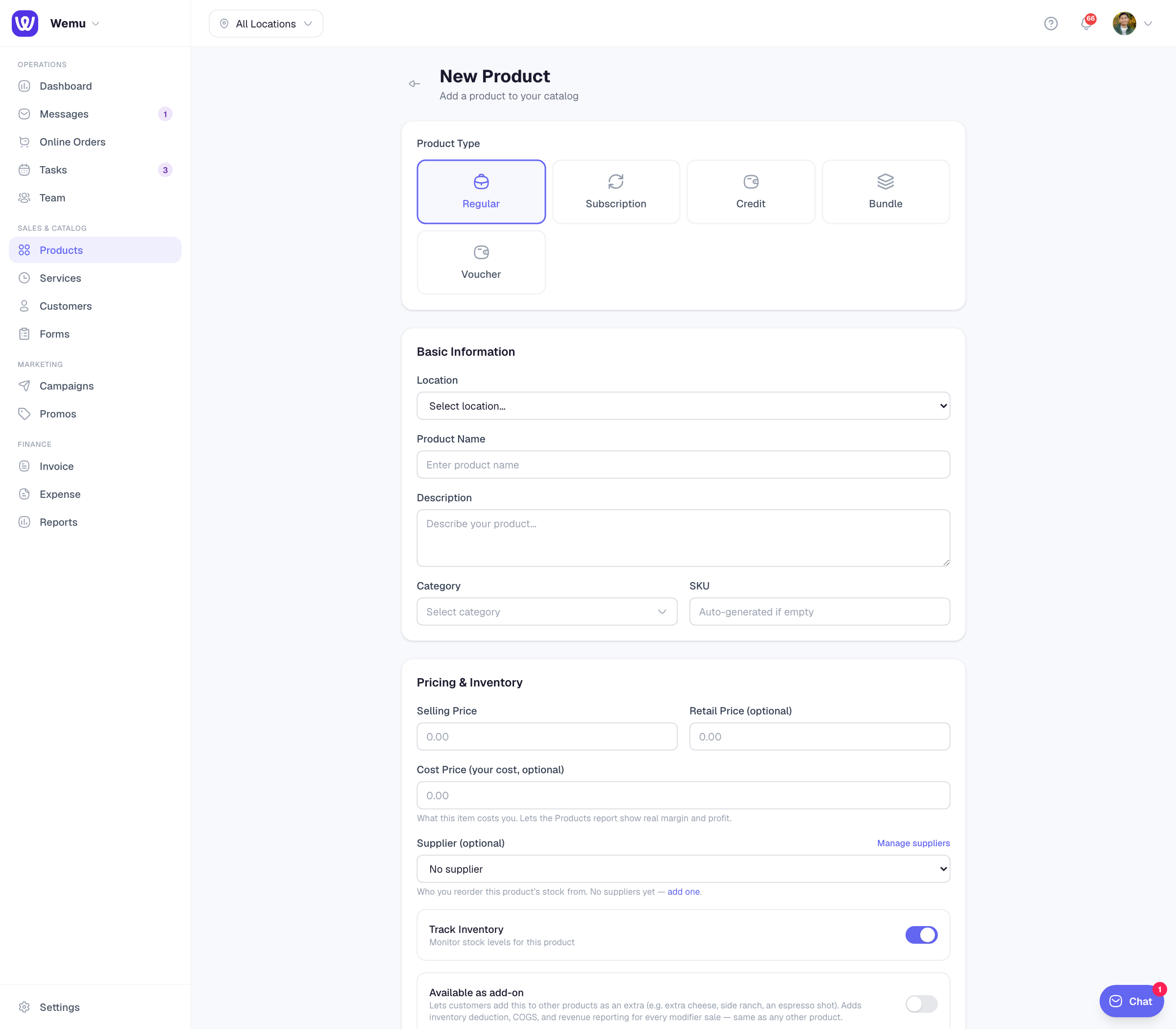
Navigate to: Sidebar → Products → Select Product → Track Inventory toggle
Enabling inventory tracking
- Open a product from your catalog
- Toggle on Track Inventory
- Enter the current Stock Quantity
- Optionally set a Low Stock Alert threshold
- Save the product
Once enabled, Wemu automatically adjusts stock levels when orders are placed, completed, or refunded.
How stock updates work
- Order placed — Stock decreases by the ordered quantity
- Order cancelled or refunded — Stock increases back
- Manual adjustment — You can manually add or remove stock at any time
Low stock alerts
When a product's stock falls below your alert threshold, Wemu highlights it in the product list so you know it's time to reorder.
- Set the threshold when editing the product (e.g., alert when stock drops below 10)
- Products with low stock show a warning badge in the catalog
- You can filter the product list to show only low-stock items
Manual stock adjustments
Sometimes you need to adjust stock manually — for example, after receiving a shipment or doing a physical count.
- Open the product
- Tap Adjust Stock
- Enter the new quantity or the amount to add/subtract
- Add an optional note explaining the adjustment
- Save
Tip: Do a physical stock count at least once a month. Compare it against Wemu's numbers and make adjustments as needed. This keeps your inventory accurate and your business running smoothly.
Viewing stock across locations
If you have multiple locations, stock is tracked per branch. You can view total stock across all locations or drill down into individual branch levels from the product detail screen.
Ask Wemu AI: "we're out of oat milk" marks an item sold out on the POS and online shop, and you can confirm that by voice. Putting it back on sale needs a tap, because customers waiting for a back-in-stock alert may then be messaged. A stock number you set through Wemu AI is saved as a stock count. See What Wemu AI can do.