Getting started with products
Adding products to Wemu is straightforward and flexible. Whether you sell physical goods, subscriptions, credit packages, or bundles, the product creation flow adapts to what you need.
Navigate to: Sidebar → Products → + Add Product
How to add a product
- Click Products in the left sidebar under "Sales & Catalog"
- Click the purple + Add Product button in the top right corner
- Choose the product type: Regular, Subscription, Credit, or Bundle
- Fill in the product name and an optional description
- Set your selling price and retail price
- Upload a product image by clicking the dashed image area
- Choose a category from the dropdown or click + Add Category to create one
- Toggle Sell Online if you want it on your public booking page
- Click Save Product at the bottom
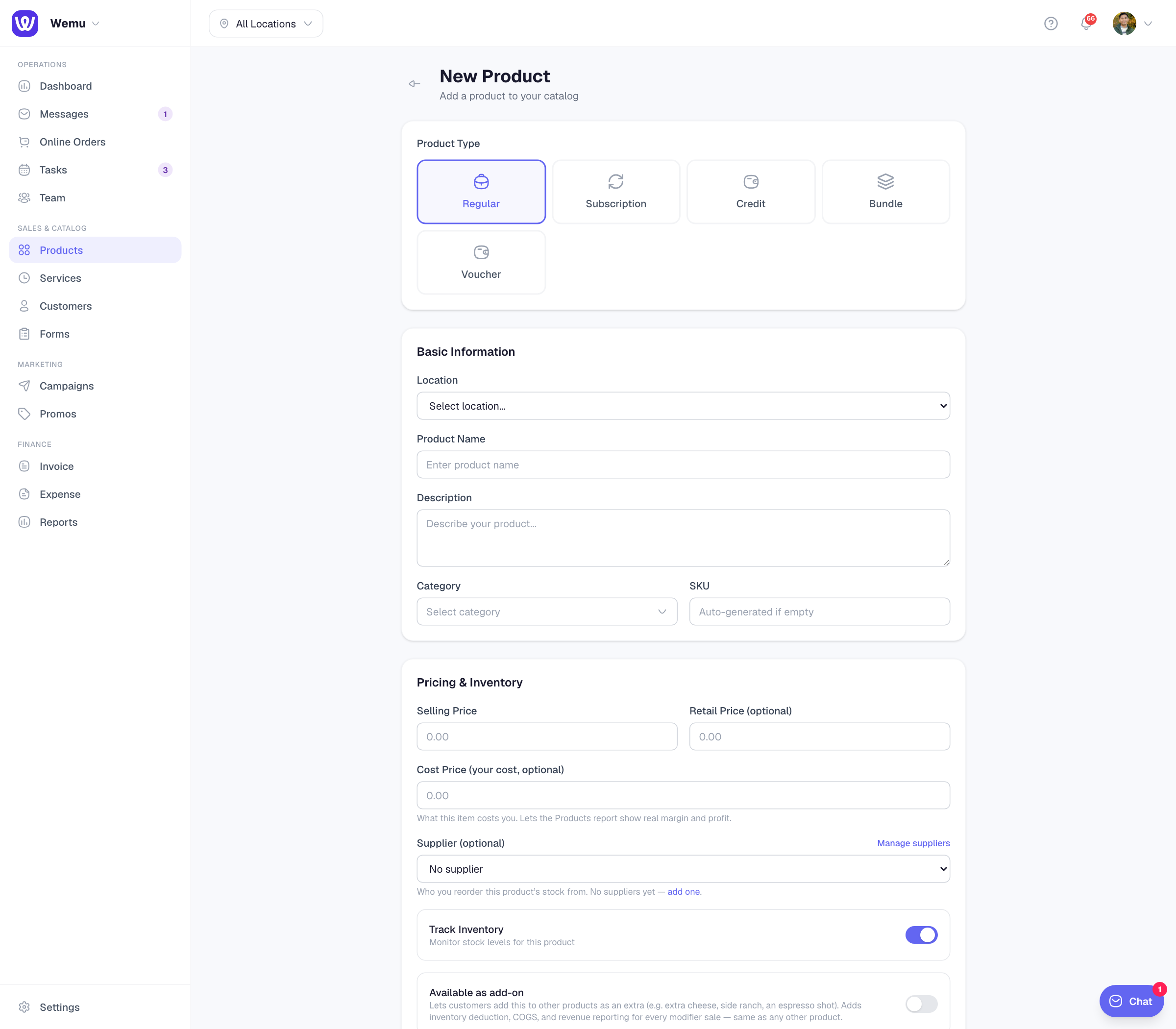
Product types explained
- Regular — A standard product with a fixed price. Great for retail items, food, or any one-time purchase.
- Subscription — A product that bills on a recurring basis. Perfect for memberships, monthly boxes, or ongoing services.
- Credit — Sell credit packages that customers can redeem later. Useful for prepaid sessions or store credit.
- Bundle — Combine multiple products into a single package at a discounted price.
Setting cost and selling price
The selling price is what your customer pays. The cost price is what it costs you. Wemu uses these two values to calculate your profit margin automatically, so you can see at a glance how profitable each product is.
Tip: Even if you don't track exact costs, entering an estimate helps you understand your margins over time.
Adding product details
You can also add:
- SKU for internal tracking
- Barcode for scanning at the point of sale
- Tax rate to apply automatic tax calculation
- Stock quantity if you want to track inventory
Once saved, your product appears in the catalog and is ready to be sold through the POS, added to invoices, or displayed on your public profile shop.
Ask Wemu AI: "add a 250g bag of house blend to Retail" or "copy the large latte as an oat latte". It saves items the way Add Product does, including bundles, gift vouchers, credit packs and memberships. Owners, admins and managers can paste in a price list to import up to 200 items at once, and the account owner can undo the latest import for 24 hours. See What Wemu AI can do.