The customer booking experience
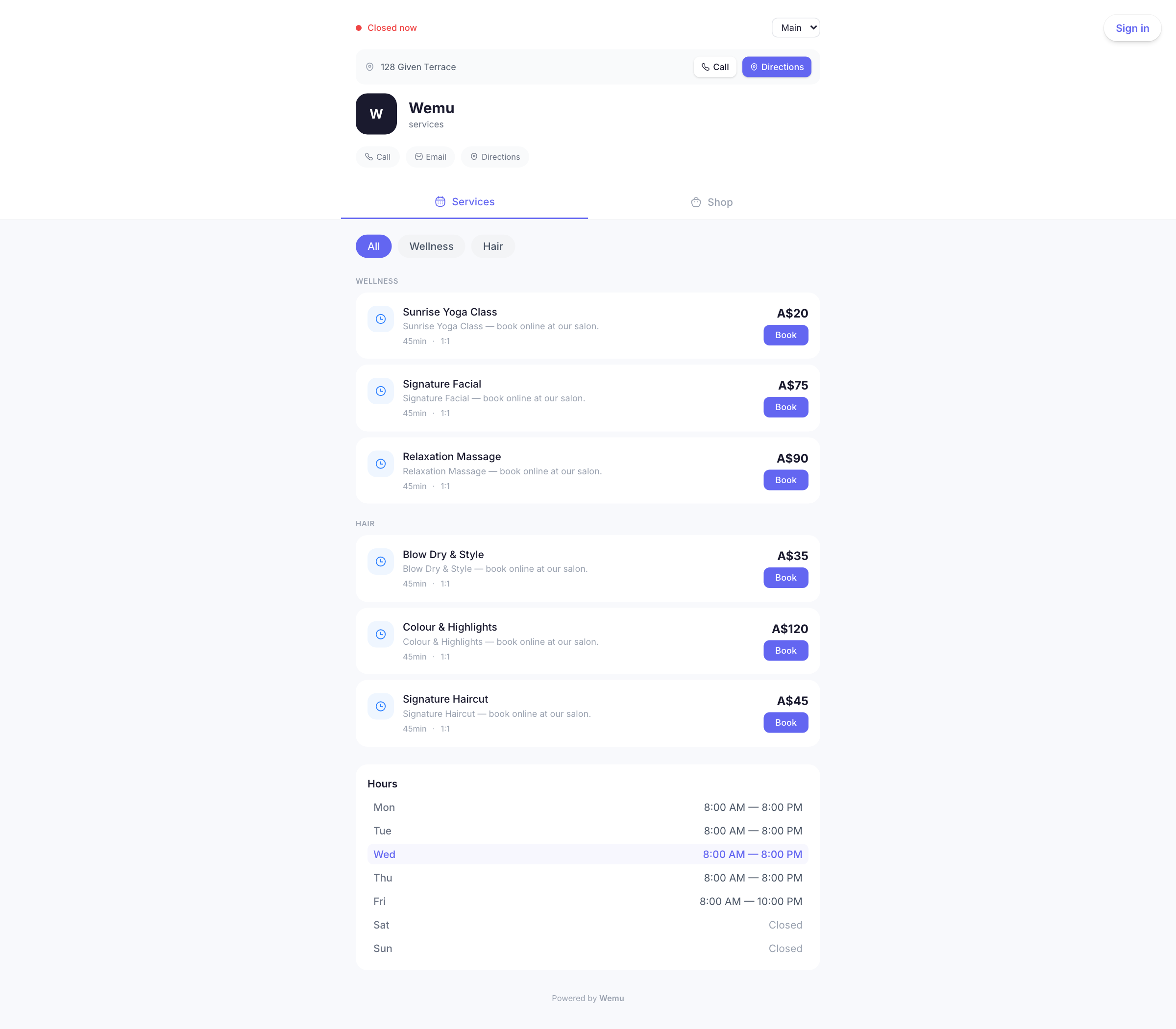
When customers visit your public profile, they can book services directly through a step-by-step flow. Understanding this process helps you optimize it for your customers.
Navigate to: Settings → Business Profile → View Public Page
The booking steps
Step 1: Choose a location
If you have multiple branches, the customer selects which location they want to visit. For single-location businesses, this step is skipped.
Step 2: Select a service
The customer browses your available services, each showing the name, description, duration, and price. They tap the service they want.
Step 3: Choose a provider
The customer selects a team member (or "Any Available" for the first open slot). Provider profiles show photos, bios, and specialties to help customers choose.
Step 4: Pick a date and time
A calendar shows available dates. When the customer selects a date, available time slots appear below. Only genuinely available slots are shown — no double-booking is possible.
Step 5: Enter information
The customer fills in their name, phone number, and email. Returning customers can log in to pre-fill this. They can also add notes (e.g., "First-time visitor" or "Prefer to sit by the window").
Step 6: Confirm
The customer reviews their booking summary and confirms. They receive a confirmation with the details.
What happens after booking
- The booking appears in your Wemu calendar
- The provider's schedule is updated
- Both you and the customer receive confirmation notifications
Cancellation and rescheduling
Customers can cancel or reschedule based on your cancellation policy settings. You configure how far in advance they must cancel under Settings > Booking Policies.
Tip: The fewer steps and decisions a customer has to make, the more bookings you'll get. If most customers don't care about their provider, enable the "Any Available" option prominently. If you have one location, skip that step entirely.