What your public page is
Every Wemu business has a public page at app.wemu.io/p/your-address. Customers can check your hours and contact details there, book your services and buy your products.
The page is public as soon as it has an address. There's no separate publish switch.
Your page address
Navigate to: Settings → Storefront → General
- Under Your page address, type the part that comes after app.wemu.io/p/. Use lowercase letters, numbers and hyphens; anything else turns into a hyphen.
- Use the copy button to copy the full link, or the open button to see your page.
- Press Save Changes.
Changing the address breaks links you've already shared: the old address stops working as soon as you save.
Your business details
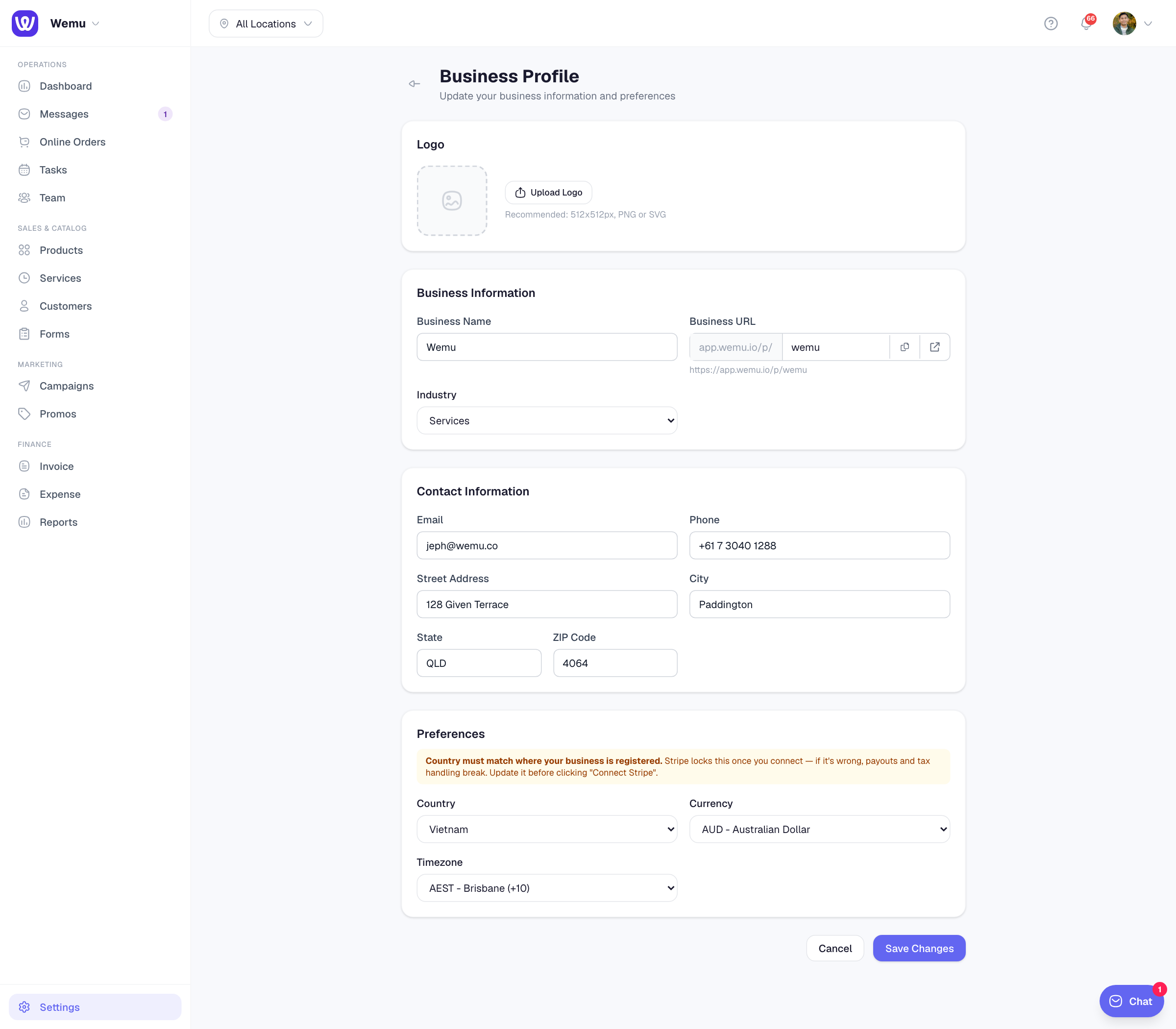
Navigate to: Settings → Business Profile
- Logo: a square image works best (512 × 512 px, PNG or SVG)
- Business Information: your business name and industry. The Business URL shown here is your page address; you change it in Storefront settings.
- Contact Information: email, phone, street address, city, state and ZIP code
- Preferences: country, currency and time zone. Set the country to where your business is registered before you connect Stripe, because Stripe locks it.
Press Save Changes when you're done.
What customers see
- Your logo and business name, whether you're open right now, your address, and buttons to call, email or get directions
- A Services tab when online bookings are on, and a Shop tab when the online shop is on and you have products to sell
- With more than one location, a location picker. Each location shows its own address and opening hours.
What you control in Storefront → General
- Enable online bookings and Enable online shop
- Show the promo code field at checkout
- Show service prices and Show product prices while customers browse
- Your Payment Providers and, with Pro Storefront, a Custom domain
Opening hours and locations come from Settings → Branches. See Adding a new location and Managing open/closed status.
Cover photo, about section and design
A cover image or video, a tagline, and About, Staff, Gallery and Testimonials sections come with the Pro Storefront add-on, under Settings → Storefront → Design, along with the Pro templates, brand colours and fonts. See What is Pro Storefront? and Storefront branding.
Wemu has no social media links section. Put your page address in your Instagram, Facebook or TikTok bio instead.
Tip: Before you share the link, open it on your phone and check that your logo, hours and contact details look right.