How the status works
Your public page shows a green or red dot with your status. Wemu works it out from the opening hours of the location the customer is looking at, so there's nothing to switch on.
- Open · Closes 6:00 PM: during today's hours
- Closed · Opens 9:00 AM: before today's opening time
- Closed now: after today's closing time
- Closed today: the day is marked Closed
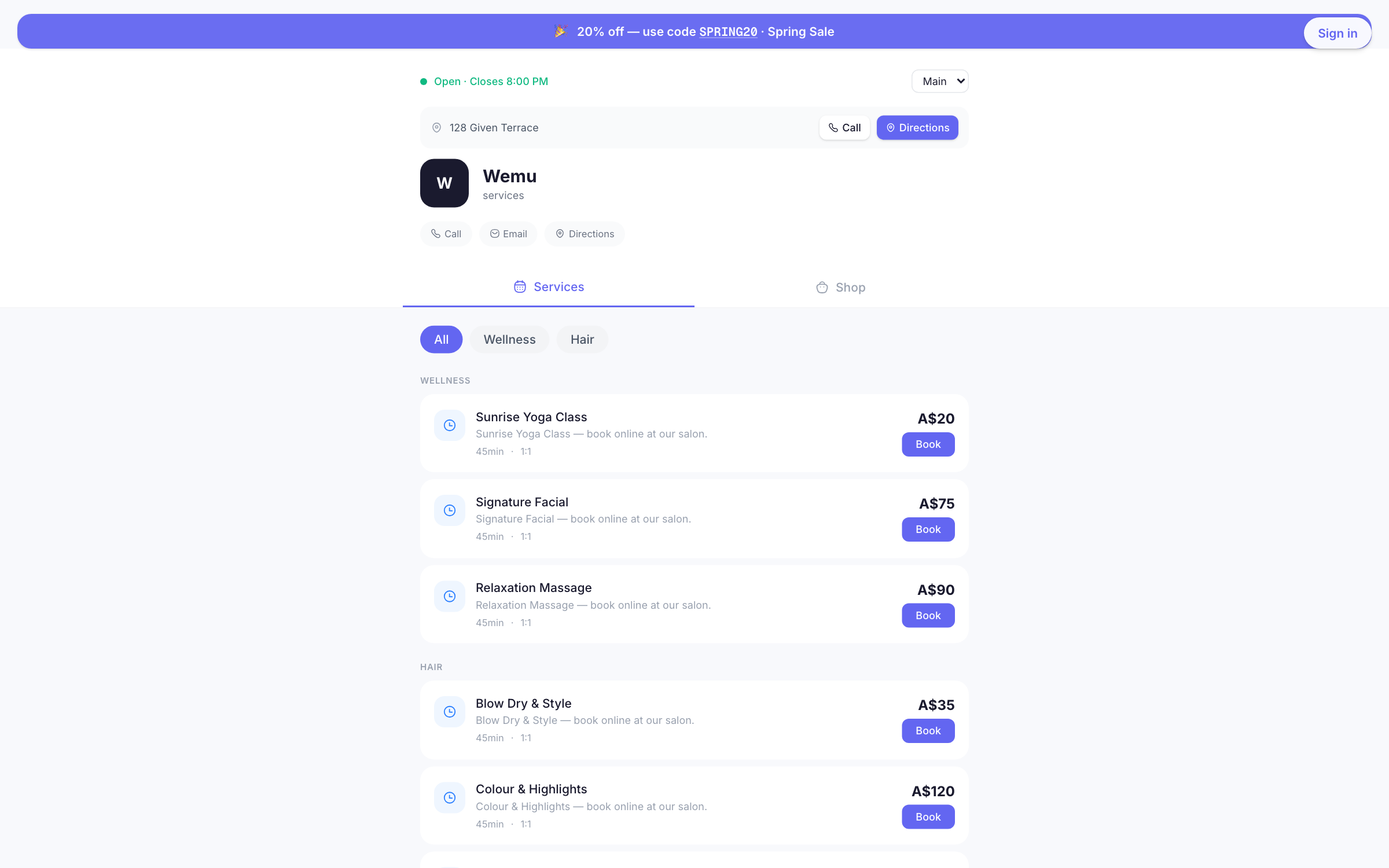
Setting your hours
Navigate to: Settings → Branches
- Press the pencil icon on the branch
- Under Operating Hours, set the opening and closing time for each day, or tick Closed
- Press Save Changes
The status follows the new hours straight away. Each branch has its own hours; see Location-specific schedules.
If no hours are saved, the page shows Monday to Friday 9:00 AM to 6:00 PM, Saturday 10:00 AM to 5:00 PM and closed on Sunday; a branch with no hours of its own shows your first branch's, so save your real hours.
Holidays and temporary closures
Wemu doesn't have holiday hours, special hours or a temporarily closed switch yet. To stop online bookings while you're closed:
- Go to Settings → Storefront → General
- Turn off Enable online bookings, and Enable online shop if you need to
- Press Save Changes
Turn them back on when you reopen. The open/closed status keeps following your weekly hours in the meantime.
Hours and bookings
The status is only a label. Online booking times come from the chosen team member's rostered shifts, and from your opening hours for Any available or when there's no shift to go on. See Location-specific schedules.
Tip: Check your hours before every public holiday. Customers trust the dot, and an "Open" sign on a closed shop costs you goodwill.