What are subtasks
Subtasks let you break a larger task into smaller, checkable items. They act as a mini to-do list within a task, making it easy to track progress on complex work.
Navigate to: Sidebar → Tasks → Select Task → Subtasks section
Adding subtasks
- Open any task
- Scroll to the Subtasks section
- Tap + Add Subtask
- Type the subtask title
- Press Enter to add another, or tap away to finish
- Subtasks appear as a checklist within the task
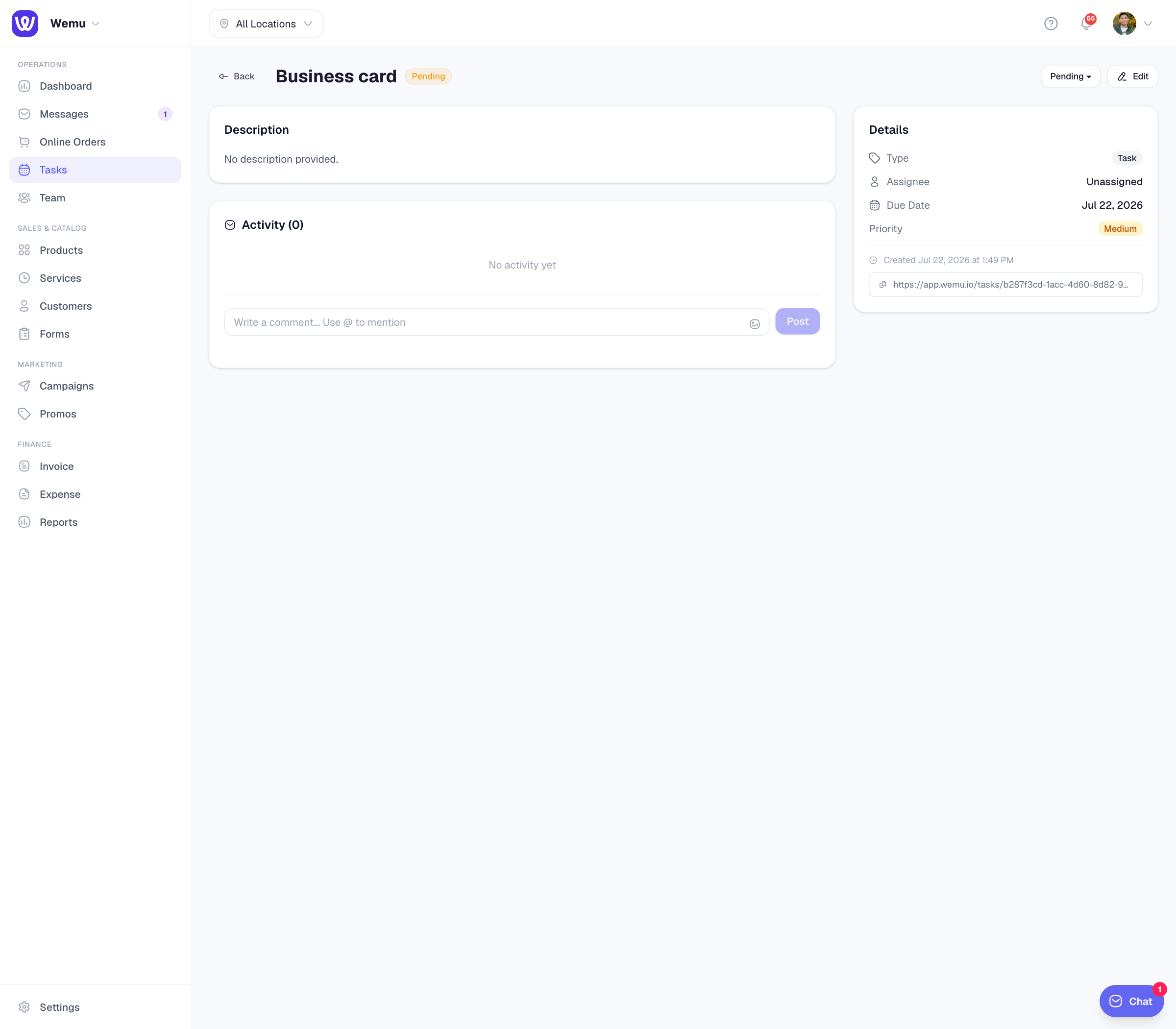
Checking off subtasks
As work gets done, tap the checkbox next to each subtask to mark it complete. The task card on the Kanban board shows progress like "3/5 done" so you can see at a glance how far along the task is.
Reordering subtasks
Drag subtasks up or down to reorder them. Put the most important or sequential items at the top so your team knows what to do first.
Subtask best practices
- Keep subtasks actionable — "Call supplier about pricing" is better than "Supplier"
- Keep them small — If a subtask takes more than a day, it should probably be its own task
- Use them for checklists — Great for repeatable processes like "Opening checklist" or "Event setup list"
Using subtasks for processes
Subtasks work well for standardized processes. For example, an event task might have:
- Confirm venue booking
- Send invitations
- Order catering
- Set up audio equipment
- Run sound check
- Brief team on schedule
Tip: If you find yourself creating the same subtasks over and over, consider creating a task template. You can duplicate a template task whenever you need it, and all the subtasks come pre-loaded.
Subtask completion and task status
Completing all subtasks doesn't automatically move the task to Completed. You still need to change the task status manually. This is by design — sometimes all the checklist items are done but the task still needs a final review or sign-off.