Why track attendance
For group classes and events, knowing who actually showed up is important for billing, follow-ups, and understanding your no-show rate. Wemu's check-in feature makes attendance tracking simple.
Navigate to: Sidebar → Tasks → Select Booking → Participants tab
How to check in participants
- Open the group booking or class from the calendar
- Tap the Participants tab
- You'll see a list of everyone who booked the class
- Tap the Check In button next to each person as they arrive
- Checked-in participants show a green indicator
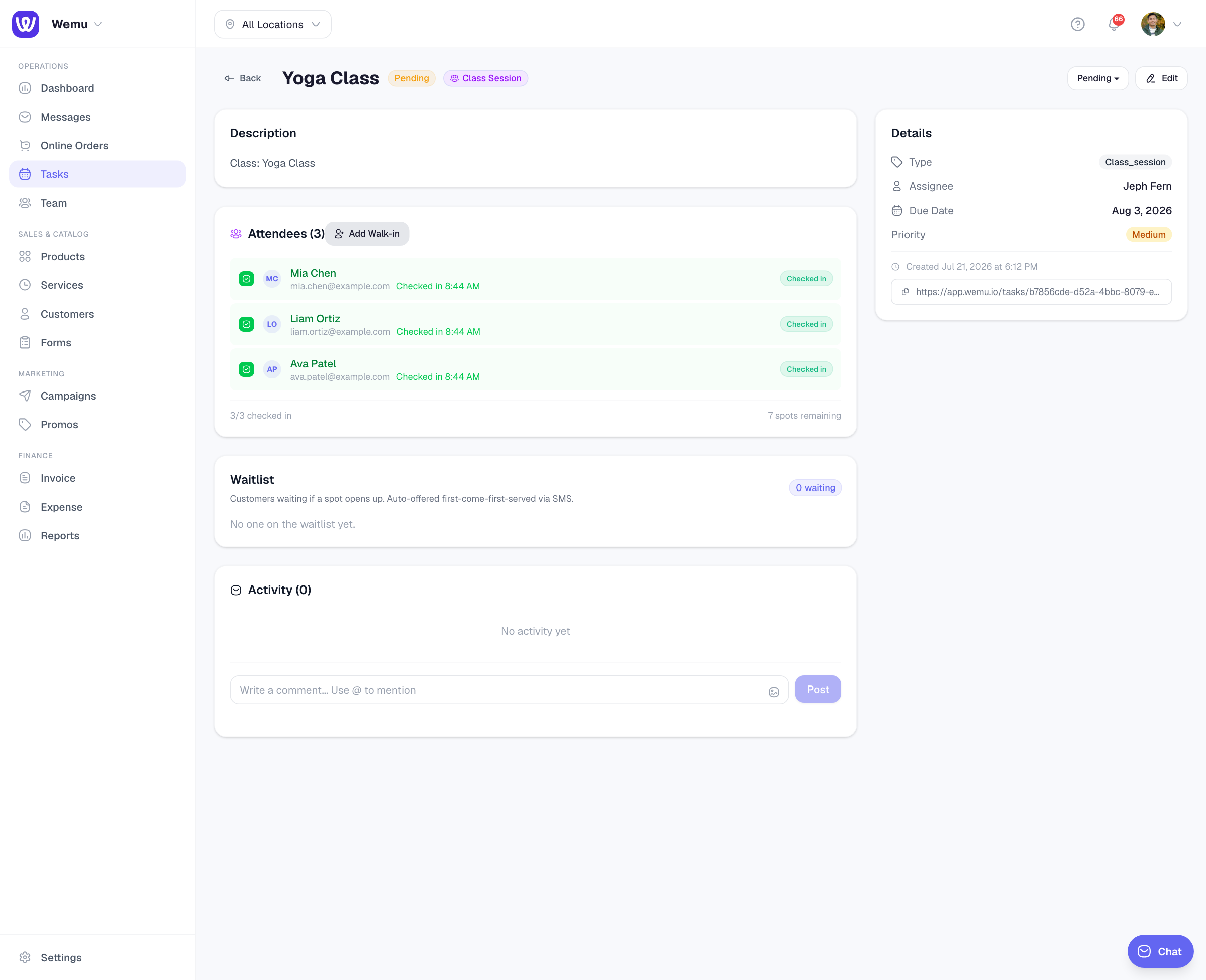
Bulk check-in
If most people show up, you can:
- Tap Check In All
- Then uncheck the few who didn't show
- This is faster than checking in each person individually
No-show handling
When a participant doesn't show up and isn't checked in, they remain in the "Not Checked In" state. You can:
- Mark them as a No-Show
- Optionally charge a no-show fee (if your cancellation policy includes one)
- Send them a follow-up message through order messaging
Viewing attendance history
Over time, Wemu tracks attendance patterns:
- See a customer's attendance rate across all their bookings
- Identify frequent no-shows
- View class fill rates (booked vs. attended)
This data is available in the Reports section under Team Performance and Bookings.
Tip: Check in participants as they walk through the door rather than all at once after the class starts. Real-time check-in gives you an accurate picture of who's there and helps you decide whether to wait for latecomers or start on time.
Check-in and billing
For prepaid classes, check-in is primarily for attendance records. For pay-per-session classes, check-in can trigger the charge. Make sure your billing settings match your business model so check-ins and payments stay in sync.
Ask Wemu AI: "check Ben in to the 6pm class", "check everyone in" or "add a walk-in to the 6pm". Check-ins can be confirmed by voice. Taking someone off a class needs a tap, because the free spot is offered to the waitlist by text. See What Wemu AI can do.