Five views
Navigate to: Sidebar → Tasks
The tabs at the top switch between Timeline, List, Board, Queue and Archived. They all show the same tasks and bookings, and Wemu remembers the view you used last on that browser.
Timeline
Your team's schedule. Day shows one row per team member with the hours across, and each booking or task as a block at its time. Week shows team members down the side and Monday to Sunday across.
A task assigned to several people appears on each of their rows. When one visit is split between two people, each sees only their part.
List
Tasks grouped by team member, with Task name, Due date, Status, Priority, Subtasks and Comments. A task with several people appears under each of them, and anything without anyone is under Unassigned.
Board
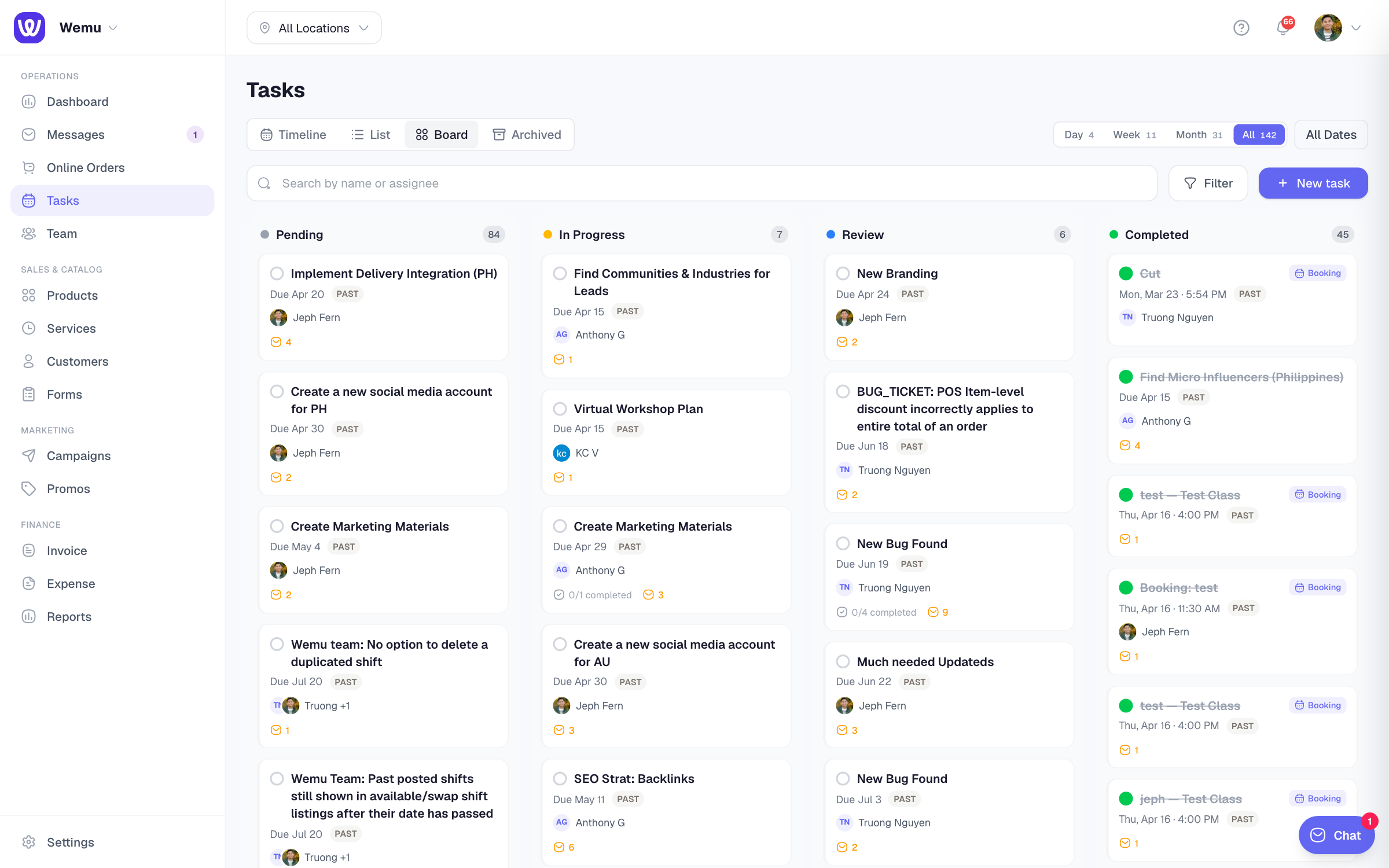
Four columns: Pending, In Progress, Review and Completed. Drag a card to another column to change its status. A repeating series shows as one card per column. Archive all on the Completed column archives everything in it.
No-shows and cancelled bookings don't have a column; find them in List, or filter by status.
Queue
The walk-in queue. See The walk-in queue & wait times.
Archived
Tasks you've archived, with a search.
Dates, search and filters
- Day, Week, Month or All sets the range, with the number of tasks in each. The arrows move back and forward, and the date opens a calendar. Timeline has Day and Week.
- Search by task name or assignee
- Filter has Status (Pending, In Progress, Review, Completed, No-show, Cancelled), Priority, Type and Assignee
- New task creates a task or booking
Chips at the top flag past bookings that still need an outcome and deposits waiting for you to confirm. See No-shows, customer flags and deposits.
Which view when
- Front desk, day to day: Timeline, Day
- Planning the week: Timeline, Week
- Following work through stages: Board
- Checking one person's load: List
Tip: Most teams keep Timeline open at the front desk and use Board for jobs that move through stages.