How access works
Access is set for each person, not for a role. Every team member has Component Access switches that decide which parts of Wemu they can open. Their role adds a few rules on top, listed below.
Component Access
Navigate to: Team → team member → Edit → Component Access
The switches are Dashboard, Products, Orders, Customers, Messaging, Tasks, Invoices, Expenses, Team, Reports, Forms, Promos, Integrations, POS, Settings and Wemu AI.
Two of them have extra switches underneath when they're on:
- POS: Apply discounts
- Customers: Add customers, Edit customers, Delete customers and View customer notes (consultation and treatment notes)
A new team member starts with only POS on. Apply discounts, Add customers and Edit customers start on; Delete customers and View customer notes start off.
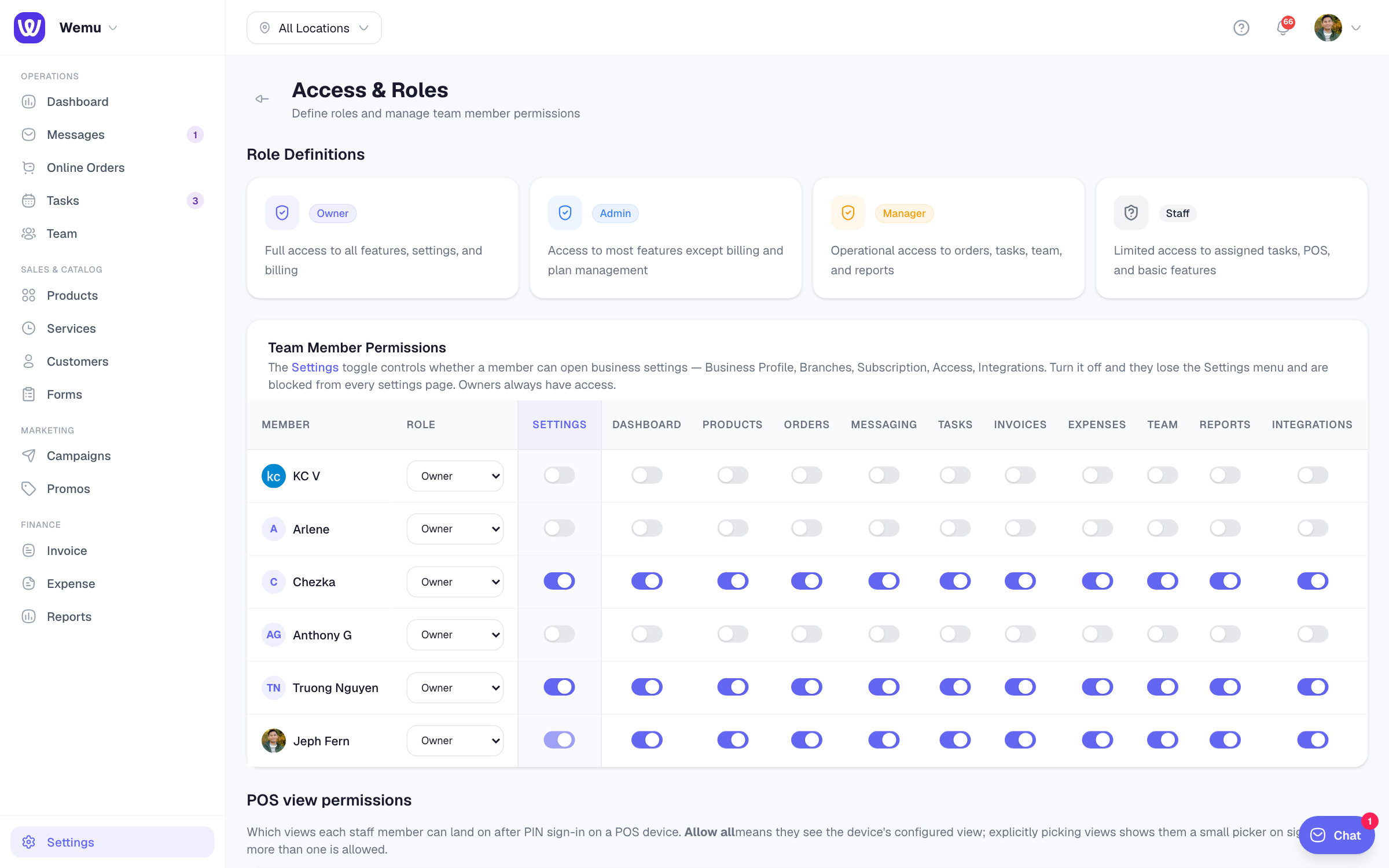
Settings → Access & Roles
Navigate to: Settings → Access & Roles
- Role Definitions: Owner, Admin, Manager and Staff
- Team Member Permissions: change everyone's role and switches in one table. The Settings column decides who can open business settings, such as Business Profile, Branches, Subscription, Access and Integrations. The Devices column decides who can add, re-role and sign out tablets in Settings → Devices; anyone with Devices needs Settings switched on too. Owners always have both.
- POS view permissions: which views each person can use on Wemu POS. See Kitchen Display, Floor & Manager views.
What the role decides
- Owners and admins are the only people who can add, remove or deactivate team members, or change anyone's role, access or pay, or someone else's PIN or email. Only the account owner can change the owner's own PIN, email or login.
- Owners, admins and managers approve till actions with their PIN, and approve leave.
- Staff get exactly what their switches allow.
Till actions that need a manager
Navigate to: Settings → Manager approvals
Choose which actions on Wemu POS need a manager's PIN before they go through, and set the discount threshold (10% unless you change it). A manager who is already signed in at the till doesn't need to enter it again. Only owners, admins and managers can change this page.
Wemu POS asks for a manager's PIN today for:
- Refunds and partial refunds
- Reprinting a receipt
- A custom discount above your threshold, and removing a discount
- Changing tax settings on the till
- Cash in and cash out
- Selling items that are out of stock
The page lists more actions than these. The others are saved, but the till doesn't check them yet.
Tip: Give people the least they need to do their job, and turn on more when they need it.