One app, four views
Wemu POS isn't only a register. Each tablet runs one of four views, so the same app becomes the screen each station needs:
- Register (called POS in some places): ring up sales and take payments. This is the default.
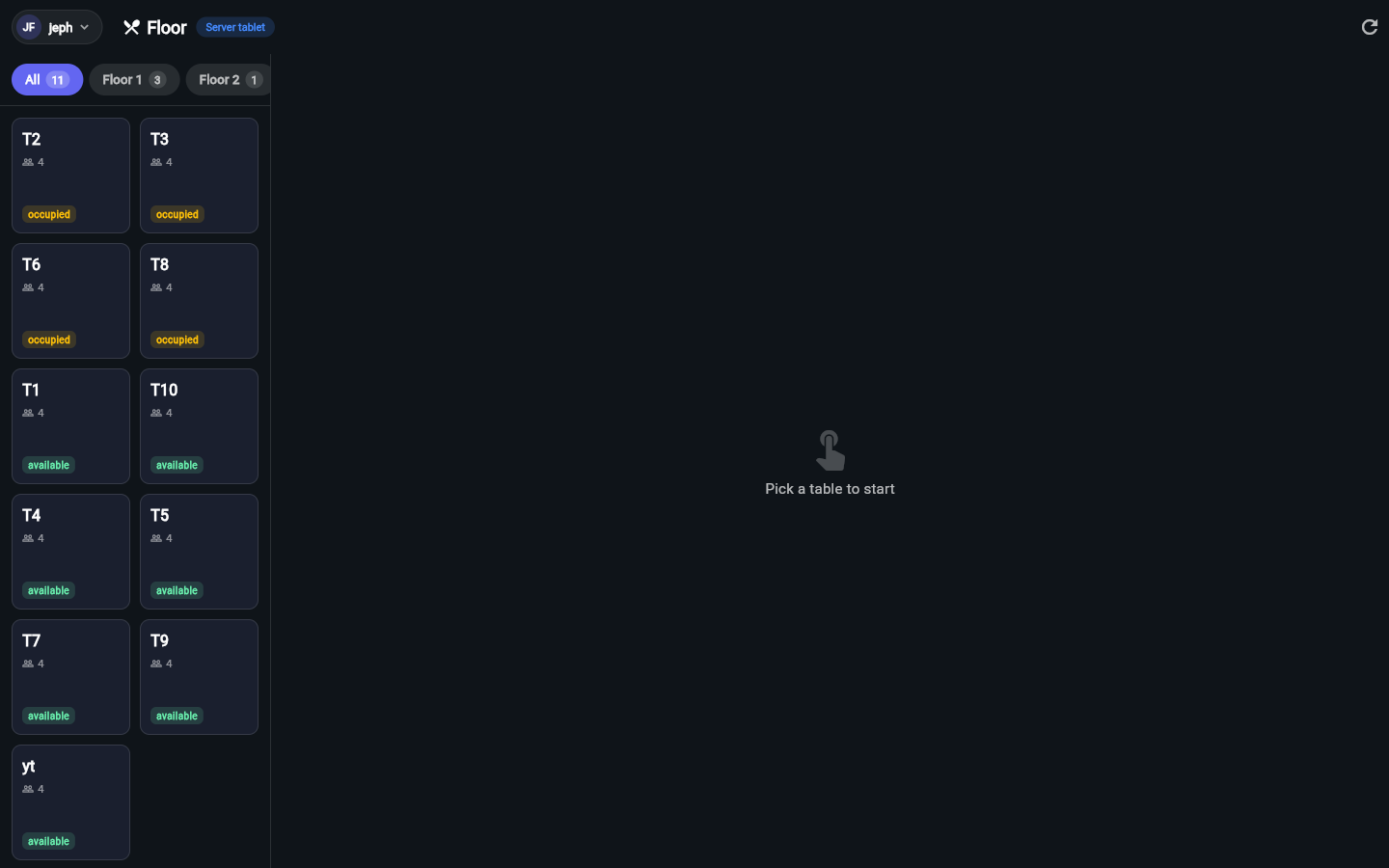
- Floor: tables and orders for servers, with no register. Servers send orders to the kitchen; payment is taken on a Register.
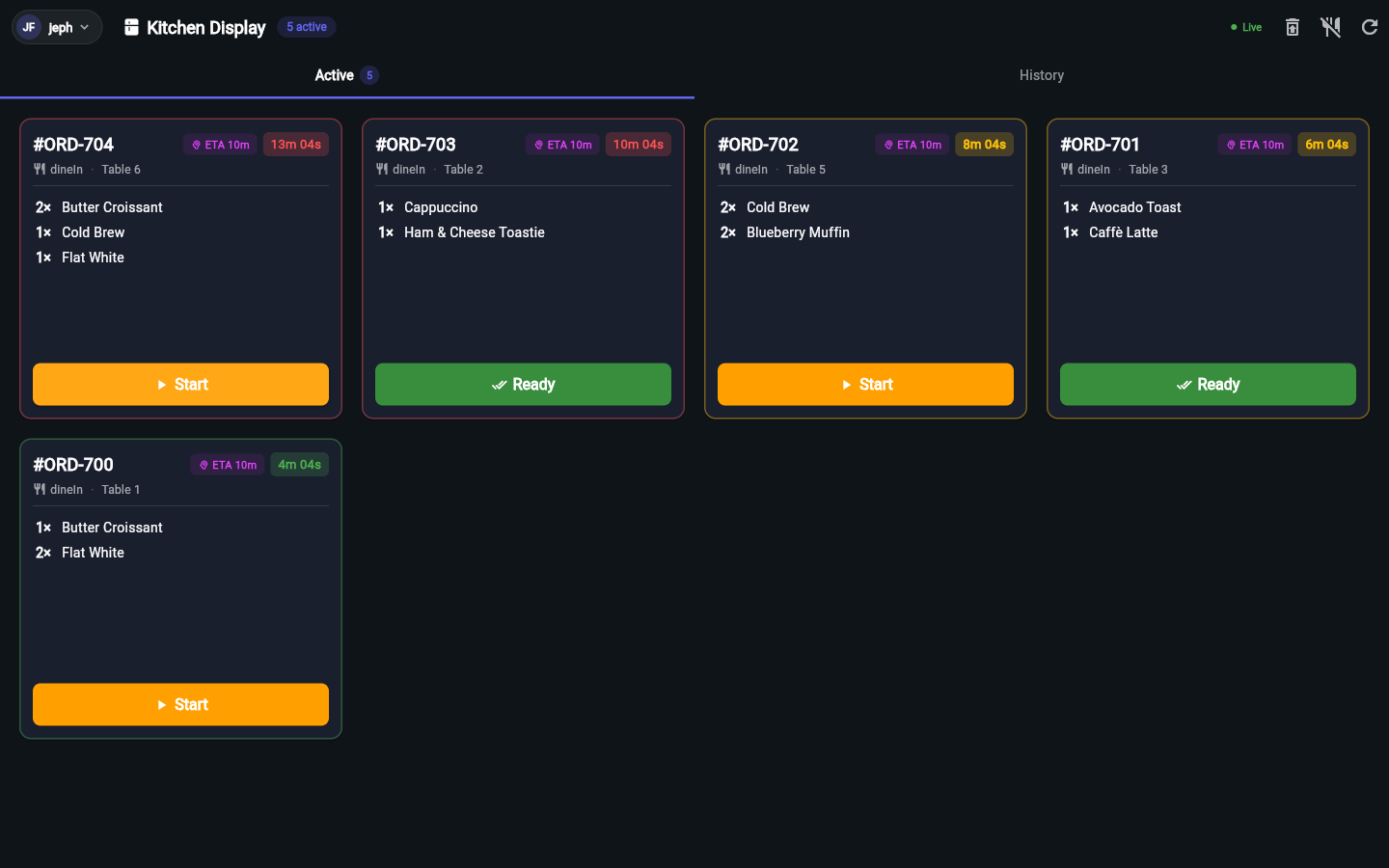
- Kitchen display: tickets and dishes for the kitchen, on Tickets, Dishes and History tabs. New tickets appear as soon as an order comes in, and staff tap Start, then Mark ready, then Picked up.
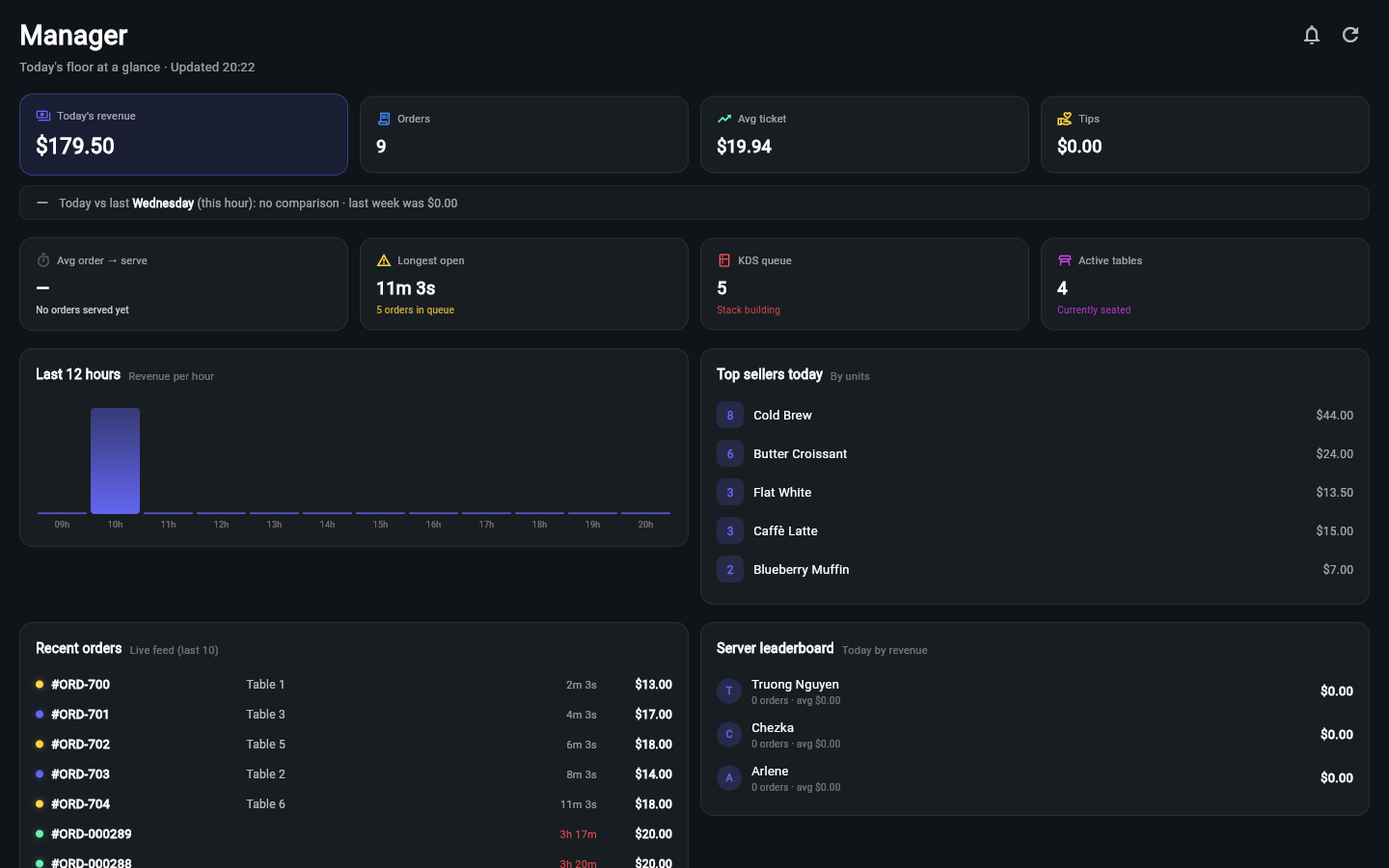
- Manager: a live view of the shift: sales today, orders, average ticket, tips, tables, refunds today, the kitchen queue and longest wait, staff on shift and top sellers. It can also email the end-of-day report.
Set up a new tablet with its view
Navigate to: Settings → Devices → Add device
Choose Register, Kitchen display, Floor or Manager, pick the branch, press Get a code, and type the code into Wemu POS on the tablet. It opens straight onto that view. See Pairing a tablet with a code.
Change a tablet's view
Navigate to: Settings → Devices → Edit
- Find the tablet and press Edit
- Under Role, choose POS, Floor, Kitchen Display or Manager
- For a kitchen display, choose its Station, or All stations (expo) to show everything. See Kitchen stations.
- Choose its Branch if you have more than one
- Press Save
The tablet switches within a few seconds while Wemu POS is open, or the next time it opens.
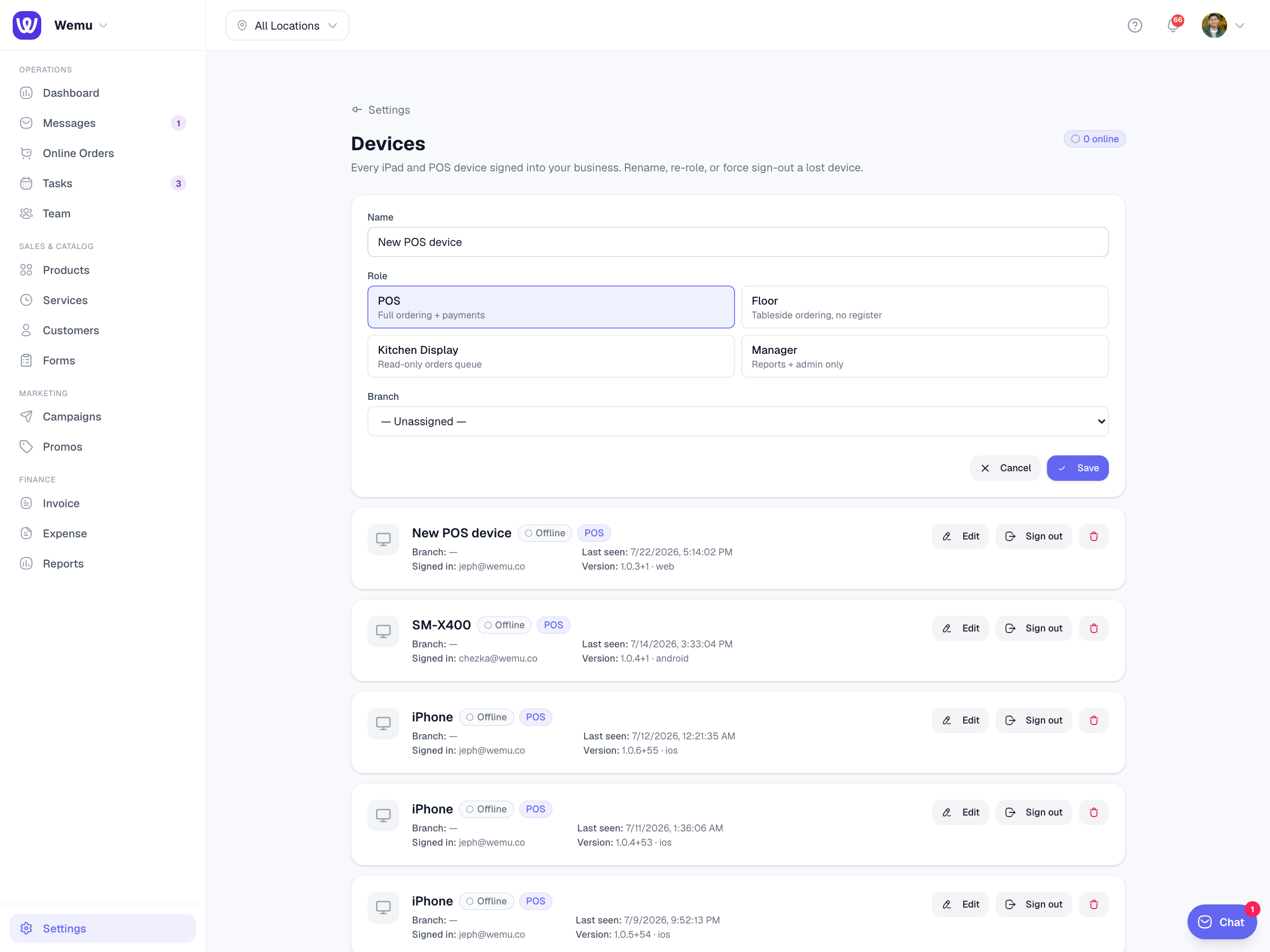
The same page has Kiosk mode for Android tablets and Sign out for a lost tablet. Owners, and team members with both Settings and Devices switched on in Settings → Access & Roles, can manage devices.
Let staff switch views
Navigate to: Settings → Access & Roles → POS view permissions
- Allow all views: the person gets whatever view the tablet is set to
- Pick one view: they always land on that view after entering their PIN, whatever the tablet is set to
- Pick several views: they choose a view after entering their PIN, and a Switch view button in the top bar lets them change during the shift without signing in again
Good to know
- A kitchen display can't take payments, and it doesn't ask for a staff PIN, so it's safe to leave on an unattended kitchen screen.
- Floor has no register: servers send orders against tables, and the table is paid on a Register.
- Manager is for owners and supervisors. It's for keeping an eye on the shift, not a till.
- All four views share the same live data, so an order rung on a Register appears on the kitchen display and in the Manager view straight away.