What banners do
When you flag a promo as "Show banner on storefront", it renders as a colored strip at the very top of your public page (`/p/yourslug`). Customers see the offer the moment they land.
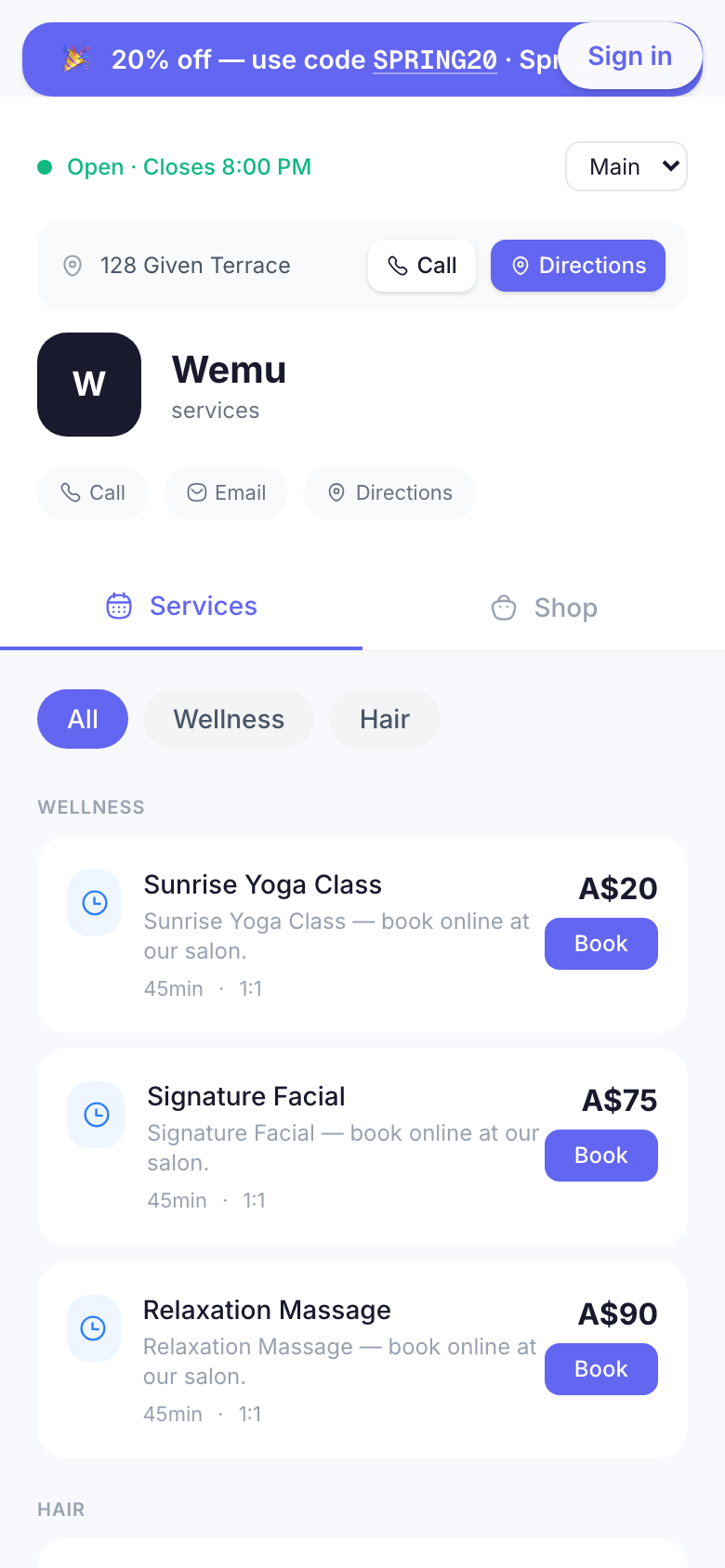
Customer interaction
Tapping the banner copies the promo code to the customer's clipboard. They can then paste it at checkout without typing.
Multiple active banners stack vertically. We recommend running 1-2 banners max — more becomes visual noise and customers ignore them.
How to enable
Marketing → Promos → edit any promo → Display → check "Show banner on public storefront"
Banner visibility is independent of redeemability:
- A draft promo with banner=on won't show (must be Active)
- A paused promo with banner=on won't show
- An active promo with banner=off won't show but still works at checkout
Brand colors
Banners pick up your storefront's primary color (set in Settings → Storefront → Design → Brand). They should always feel like part of your store, not a generic Wemu element.
Pro Storefront customers can customize the primary color further. Free-tier storefronts use the default Wemu purple.
Hidden promotions
Want to run a code without advertising it publicly (e.g., influencer codes, win-back codes, internal staff discounts)? Just leave the banner toggle off. The code still works at checkout for anyone who knows it.