What a one-to-one service is
One customer with one team member: a haircut, a facial, a consultation, a personal training session. Customers book a time on your public page, and your team can book them from Tasks or Wemu POS.
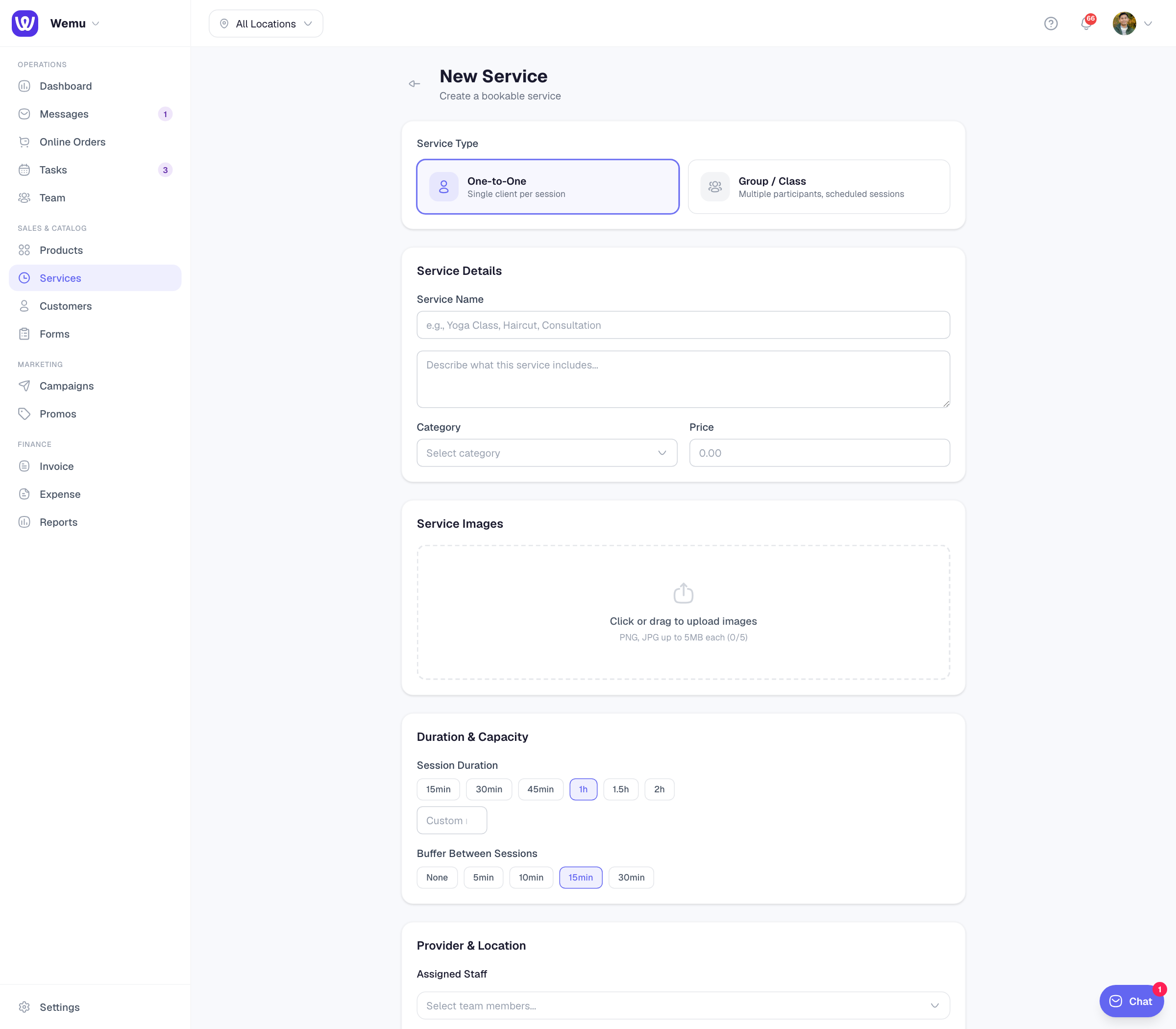
Navigate to: Sidebar → Services → Add Service
Creating the service
- Under Service Type, choose One-to-One
- Under Service Details, enter the Service Name, a description, a Category (pick one or create one) and the Price. Commission % is optional: leave it blank to use each team member's own rate. See Setting up commissions.
- Add up to five Service Images for your booking page
- Under Duration & Capacity, choose the Session Duration (15 minutes to 2 hours, or type your own), the Buffer Between Sessions and any Processing Time. See Managing buffer time.
- Switch on Offer as an add-on if it's a small upgrade to suggest while customers book something else. See Service add-ons.
- Under Provider & Location, add everyone who performs it to Assigned Staff, and choose where it happens: In Store, Online or At Customer
- Leave Bookable Online on to show it on your public page, and Show on POS on to sell it from the register
- Optionally choose an Intake form for customers to fill in. See Intake forms & consents.
- Optionally link the products it uses under Supplies Used, so they come off your stock each time
- Press Create Service
Name and price are required. Once the service is saved, open it again to fill in its Treatment cost (see Treatment cost & profit) and the rooms or machines it needs (see Setting up resources).
When customers can book it
When a customer picks a team member, online booking offers times from that person's rostered shifts, or the branch's opening hours if they have no shift that day. With Any available, times come from your opening hours, and Wemu then assigns someone who's free. See Location-specific schedules and Assigning multiple providers.
How often a start time is offered (every 15 minutes, every hour, or matching the service length) is set in Settings → Storefront → Bookings → Appointment start times.
One price per service
Each service has one price. To charge more for a senior team member, create a separate service, such as "Haircut, senior stylist", and assign only them to it.
Managing services
On the Services list, search by name or press Filter to narrow by type (1:1 or Group) and category. Import with AI turns a price list into services. Open a service to Edit it, Duplicate it to another branch, or Delete it.
Tip: Start with your most-booked services and add the rest once those are working well.
Ask Wemu AI: "add a 45-minute brow tint", "copy the haircut for the Northside branch" or "Anna and Ben can do all the colour services". See What Wemu AI can do.